A user taps Download on a manual, sees a check mark, and opens it on a plane. The viewer says the file is damaged. Another user finds that a document marked available offline is gone after a few weeks, and a third keeps reading an old version after the remote copy changed. Each of these comes from the same shortcut: the app treats "a download started" or "a file exists" as proof that a usable copy is on the device.
The short answer is to make "available offline" a recorded state that the app sets only after it has checked the bytes. Download into a temporary .part file next to the final location, compare the byte count and SHA-256 hash with what your catalog says the document should be, check the PDF header and end marker, and only then rename the file and write the record. Keep the previous verified copy until the new one passes. Store the files where the operating system will not clear them on its own, track a storage budget, and let the user delete one document without touching the rest.
This guide builds that library in plain Dart for Flutter's Android, iOS, macOS, Windows and Linux targets. The download and verification code below ran against a local test server; the Flutter wiring, the PDF viewer and the platform-specific folder behavior are documented rather than tested here, and the article marks which is which.
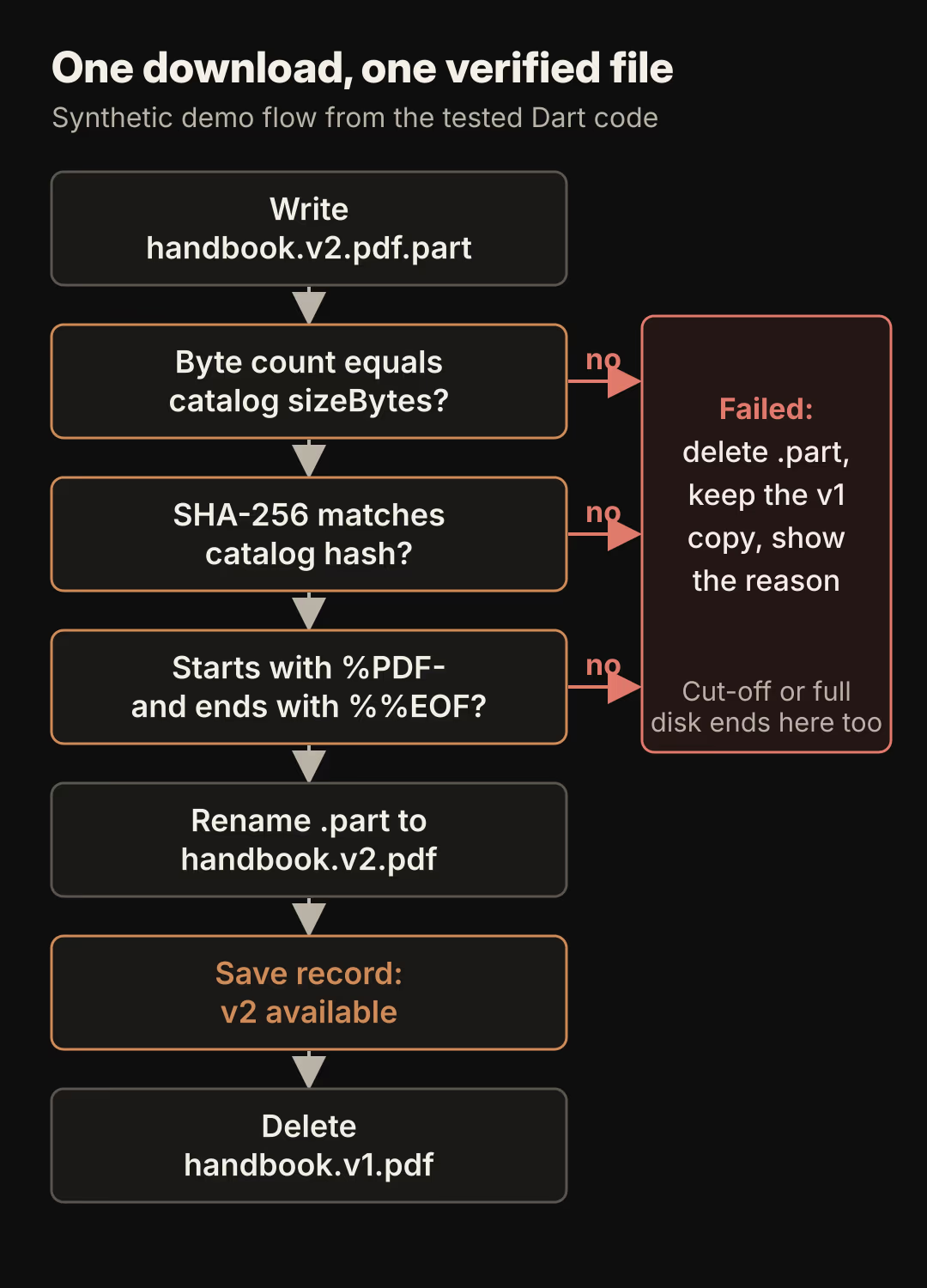
The red box is where most bugs hide. If any check fails, the half-written .part file is deleted and the copy the user already had stays readable. The record that powers the "available offline" badge changes in only one place, after every check has passed.
Match the symptom to the cause
Before changing code, find which of these your app is doing. Each symptom has a different fix.
| What the user sees | Likely cause | Fix in this guide |
|---|---|---|
| Badge says offline, viewer says the file is damaged | The flag was set when the download started, or a cut-off transfer was saved under the final name | Write to .part, verify, then rename |
| A login or error page opens instead of the PDF | The server returned HTML with status 200 and the app saved it | Compare size and hash with the catalog |
| Downloaded files vanish weeks later | Files were stored in a cache or temporary folder the system may clear | Use the app support folder and check the file before opening |
| An old version opens after the document changed | No version is stored with the local copy | Store the version and compare it on refresh |
| Download fails on a phone with little space and leaves junk | Partial files are never cleaned up | Delete .part on failure and at startup |
| Removing one document clears the whole library | Removal deletes a folder instead of one file | Delete one file by its recorded name |
The catalog and the local record
Verification needs something to verify against. The app's catalog, whether a Firestore collection, a JSON endpoint or Cloud Storage metadata, should describe each document with five fields: a stable id, an integer version, the download url, the exact sizeBytes and a sha256 of the file. Produce the hash on the server when the PDF is published. If the files live in Cloud Storage for Firebase, the FullMetadata class also exposes size, md5Hash and generation, which can serve the same purpose if you compare the Base64 MD5 value instead of SHA-256.
On the device, keep a small index with one record per document. The demo uses a JSON file written with the same write-then-rename pattern, but a local database works too.
class RemoteDoc {
  RemoteDoc({required this.id, required this.version, required this.url,
      required this.sizeBytes, required this.sha256});
  final String id;
  final int version;
  final Uri url;
  final int sizeBytes;
  final String sha256; // lowercase hex
}

enum CopyState { downloading, available, outdated, failed }
A record is available when a verified file is on disk and matches the current catalog version, and outdated when the file is verified but the catalog now lists a newer version. An outdated copy still opens. The downloading and failed states describe the latest attempt and are kept apart from the verified copy, so a failed update never replaces a good file in the index. There is no stored "not downloaded" state: no record means no copy.
Choose a folder the system will not clear
Use getApplicationSupportDirectory from path_provider for the library. Its documentation describes it as the place for app files you do not want exposed to the user, and maps it to NSApplicationSupportDirectory on iOS and macOS and to the app's files directory on Android. The path_provider package supports Android, iOS, Linux, macOS and Windows. It does not list web, and dart:io cannot be imported by web apps, so this design does not apply to Flutter web.
| Folder | What the platform documentation says | Use it for the library? |
|---|---|---|
| Temporary | Apple says the system periodically purges tmp/ when the app is not running | No |
| Cache | Android may delete cache files when internal storage is low; iOS may delete Caches/ when the device is very low on space | Only if a copy that silently disappears is acceptable |
| Application documents | path_provider reserves it for user-generated data that cannot be recreated; on iOS it can be exposed through file sharing | No, unless users should see the PDFs |
| Application support | Not described as purgeable on either platform; removed on uninstall | Yes |
Two platform details remain. Apple's guide says files in Documents/ and Application Support/ are backed up by default and that any file that can be downloaded again must be excluded from the backup. Flutter has no built-in call for that, so an iOS app needs a small platform channel that sets isExcludedFromBackup on each saved PDF; this guide did not test one. On Android, the app-specific storage page says these files are removed when the app is uninstalled and that internal storage tends to be small.
Even in the support folder, check that the file exists and has the recorded size before you open it. Users clear app data and restore devices. The demo's openable method drops the record when the file is missing, so the badge falls back to Download instead of promising a file that is gone.
Download to a temporary file and promote only verified bytes
The .part file sits in the same folder as the final file. That matters because the Dart File.rename documentation warns that on some platforms a rename cannot move a file between file systems, and the cache or temporary folder may not be on the same one as the support folder.
Future<File> download(RemoteDoc doc) async {
  final previous = _copies[doc.id];
  if (usedBytes - (previous?.sizeBytes ?? 0) + doc.sizeBytes > budgetBytes) {
    throw _fail(doc, 'storage-budget');
  }
  final name = '${doc.id}.v${doc.version}.pdf';
  final part = File('${dir.path}/$name.part');
  final target = File('${dir.path}/$name');
  _attempts[doc.id] = LocalCopy(
      id: doc.id, version: doc.version, state: CopyState.downloading);

  IOSink? sink;
  try {
    final request = await _client.getUrl(doc.url);
    request.headers.set(HttpHeaders.acceptEncodingHeader, 'identity');
    final response = await request.close();
    if ([403, 404, 410].contains(response.statusCode)) {
      await response.drain<void>();
      throw DownloadFailure('stale-link-${response.statusCode}');
    }
    if (response.statusCode != 200) {
      await response.drain<void>();
      throw DownloadFailure('http-${response.statusCode}');
    }

    sink = part.openWrite();
    final digest = _DigestSink();
    final hasher = sha256.startChunkedConversion(digest);
    var written = 0;
    await for (final chunk in response) {
      written += chunk.length;
      if (written > doc.sizeBytes) throw DownloadFailure('too-large');
      hasher.add(chunk);
      sink.add(chunk);
    }
    await sink.flush();
    await sink.close();
    sink = null;
    hasher.close();

    if (written != doc.sizeBytes) throw DownloadFailure('incomplete');
    if (digest.value.toString() != doc.sha256) {
      throw DownloadFailure('checksum');
    }
    if (!await _looksLikePdf(part)) throw DownloadFailure('not-a-pdf');

    await part.rename(target.path);
    _copies[doc.id] = LocalCopy(id: doc.id, version: doc.version,
        state: CopyState.available, fileName: name, sizeBytes: doc.sizeBytes);
    await _saveIndex();
    _attempts.remove(doc.id);
    if (previous?.fileName != null && previous!.fileName != name) {
      final old = File('${dir.path}/${previous.fileName}');
      if (await old.exists()) await old.delete();
    }
    return target;
  } on DownloadFailure catch (e) {
    throw _fail(doc, e.reason);
  } on FileSystemException catch (e) {
    throw _fail(doc, 'disk:${e.osError?.errorCode}');
  } on HttpException {
    throw _fail(doc, 'interrupted');
  } on SocketException {
    throw _fail(doc, 'offline');
  } finally {
    try { await sink?.close(); } catch (_) {}
    if (await part.exists()) await part.delete();
  }
}
_fail stores a failed attempt with its reason and returns the exception; it never touches the verified record. The sha256 and startChunkedConversion calls come from package:crypto, and _DigestSink is a five-line Sink<Digest> that keeps the result. The full file has about 250 lines including the index, refresh and remove.
The Accept-Encoding: identity header is there because Dart's HttpClient decompresses gzip responses by default, and the autoUncompress documentation notes that Content-Length then still reports the compressed size. Comparing against the catalog's sizeBytes instead of a response header avoids that mismatch entirely.
If the files are in Cloud Storage for Firebase, you can fetch the URL with getDownloadURL() and keep this code, or call writeToFile on the reference. The download guide says writeToFile returns a DownloadTask with running, paused, success, canceled and error states. Point it at the .part file and run the same checks before renaming. Avoid getData() for PDFs: it loads the whole file into memory and takes a maximum size.
What the PDF check does and does not prove
The PDF specification, ISO 32000-1 sections 7.5.2 and 7.5.5, says the first line of a PDF is a header beginning with %PDF- and the last line contains only %%EOF. The demo reads the first five bytes and looks for %%EOF in the last 1,024 bytes, allowing for trailing line breaks. That catches a saved HTML page or a truncated file when no catalog hash is available. It does not prove the document renders. With a matching SHA-256 from your own catalog, the check is a second line of defense; the hash is what proves you have the exact file you published.
Respect a storage budget and remove one copy at a time

Two different limits apply, and the app should report them differently. The first is a budget you choose, such as 200 MB for downloaded documents. The demo adds the recorded sizes of verified copies and refuses a download that would exceed the budget, counting the space an older version will free. The user sees "Library full, remove a document" before any bytes move.
The second limit is the device itself. Android's storage guidance says you may skip a free-space check and catch the write error instead, and offers getAllocatableBytes() to ask how much space the device can provide, which Flutter reaches through a platform channel or plugin. The demo catches the FileSystemException, deletes the .part file and records a disk failure. The run below filled a real 2 MB file system and got the Linux error code for a full device.
Removal deletes one recorded file and one record:
Future<void> remove(String id) async {
  final c = _copies.remove(id);
  _attempts.remove(id);
  await _saveIndex();
  if (c?.fileName != null) {
    final f = File('${dir.path}/${c!.fileName}');
    if (await f.exists()) await f.delete();
  }
}
The record is saved before the file is deleted. If the app stops between the two steps, the result is an unlisted file rather than a listed file that does not exist. A startup sweep can delete PDFs that no record references, the same way load() already deletes leftover .part files.
Keep the old copy while a new version downloads
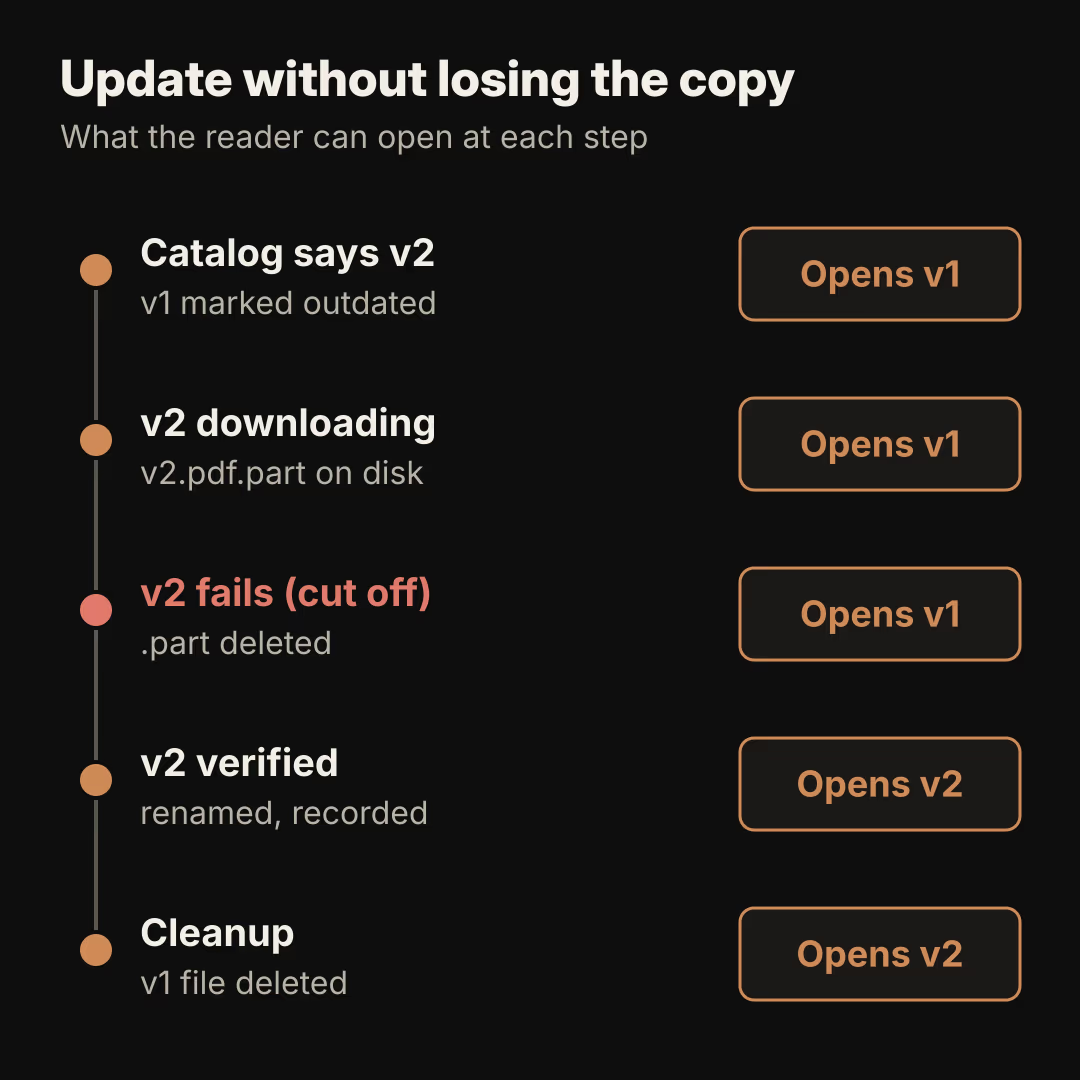
Run refresh with the current catalog whenever the app is online. It marks any copy with a lower version as outdated and leaves the file alone, so the user can keep reading and choose when to update. Show the difference in the list, for example "Version 2 available", rather than hiding the old copy.
A stale link is a separate case. When the catalog URL returns 403, 404 or 410, the demo records stale-link and keeps the local copy. Signed or tokenized URLs expire, so fetch a fresh URL from your backend and retry instead of deleting the user's file.
Why this guide restarts interrupted downloads
Resuming from the middle sounds simple, but it depends on the server. RFC 9110 says a server may ignore the Range header and send the whole file with status 200. A correct resume also needs If-Range with a validator such as an ETag, so the server sends the full new file instead of mixing bytes from two versions. The demo deletes the .part file and starts again, which is the safe default for documents of a few megabytes.
If you need resumable or background transfers for large files, test your actual server's 206 Partial Content behavior first. Packages such as background_downloader document native transfers through URLSession on iOS and WorkManager on Android, with pause and resume. Keep the same rule either way: the file is promoted only after the hash matches.
Open the verified file in a viewer
Flutter has no built-in PDF widget, so the viewer is a package choice. pdfrx, for example, lists Android, iOS, Windows, macOS, Linux and web, and has a PdfViewer.file constructor. Pass it the path from openable(id) and never the .part path:
final file = await library.openable(doc.id);
if (file == null) {
  // Show "Download" again; the copy is gone or never finished.
} else {
  Navigator.of(context).push(MaterialPageRoute(
    builder: (_) => Scaffold(body: PdfViewer.file(file.path)),
  ));
}
Wire the library at startup with PdfLibrary(Directory('${(await getApplicationSupportDirectory()).path}/pdf-library'), budgetBytes: 200 * 1024 * 1024) and call load() once. These two snippets were not run on a device for this guide.
Where FlutterFlow's built-in widgets stop
FlutterFlow's PdfViewer documentation lists network URLs and assets uploaded to the project as sources. A network URL needs a connection, so it does not give you an offline library. The download, verification, index and removal belong in a custom action, which can add path_provider and crypto as dependencies, and the viewer for a local file belongs in a custom widget. If more of the feature ends up in custom code than in the builder, the trade-offs in when to move from FlutterFlow custom code to pure Flutter apply.
What the test run showed
The PdfLibrary class ran in Dart 3.13.7 on Linux against a local HttpServer with synthetic one-page PDFs of about 250 KB to 3 MB, generated for this test and confirmed readable with pdfinfo. It did not run inside a Flutter app, against Firebase or on a phone.
| Scenario | Result |
|---|---|
| Download v1, restart the library, open offline | v1 opened from the index after restart |
| v2 transfer cut off at 40% | interrupted; v1 still opened; no .part left |
| Server returned an HTML page with status 200 | checksum; v1 kept |
| Catalog URL returned 403 | stale-link-403; v1 kept |
| Successful v2 update | v2 recorded, then the v1 file deleted |
| Budget of 700,000 bytes | 250 KB document accepted, 3 MB refused before download |
| 3 MB download on a 2 MB file system | disk:28 (no space); partial file removed; other copy intact |
| Remove one document | Only that file and record removed |
| File deleted outside the app | openable returned null and dropped the record |
Leftover .part after a crash | Deleted on the next load() |
All ten scenarios passed. Not tested: the path_provider folders on real devices, iOS backup exclusion, Android cache eviction, pdfrx rendering, Cloud Storage writeToFile, and FlutterFlow custom code. Treat those parts as a reference implementation to verify in your own project.
Diagnostic checklist
- Search your code for where the offline badge is set. It should change only after the size, hash and PDF checks pass.
- Print the directory your files are saved in. If it is a cache or temporary folder, move the library to application support.
- Confirm the catalog has a version, an exact size and a hash for every document.
- Kill the app during a download, relaunch, and confirm no
.partfile remains and the badge is unchanged. - Point a document at a URL that returns an HTML page and confirm the app refuses it.
- Fill your budget, then try one more download and check the message.
- Publish a new version and confirm the old copy still opens until the new one is verified.
- Remove one document and confirm the others still open with the device offline.
For the Firestore side of an offline-capable app, the Flutter and Firebase SaaS stack overview covers the surrounding architecture, and what happens when offline Firestore writes are rejected later covers queued writes, which have a different failure mode from files.
Start with step 1. If the badge is set anywhere before the bytes are checked, move that line below the rename and run steps 4 and 5 again.