A shopper filters a catalog by category and price, scrolls two pages, then taps the chip to remove the price filter. The chip disappears, but the list still shows only cheap items, or it shows the right items starting from the middle of the old results. Clearing everything brings back the full catalog with a selection still highlighted in the filter sheet. The cause is almost always the same: the chips, the sheet, the query and the pagination each keep their own copy of "the current filters", and an action updates some of them but not all.
The fix is to keep one applied filter model in page state, derive the chips and the query from it, and start the list over whenever that model or the sort order changes. The filter sheet edits a draft copy, which only becomes the applied model when the user taps Apply.
The catalog in this guide is a synthetic demonstration with three fields to filter and sort on. The FlutterFlow options described here were checked against the current FlutterFlow and Firebase documentation on 26 October 2026. The design has not been built and run in a FlutterFlow project for this article, and the Dart snippet near the end has not been compiled. The acceptance sequence at the end tells you how to confirm each behavior in your own project.
Four copies of the same filter
A typical first version stores filter state in four places without anyone deciding to. The ChoiceChips widget in the filter sheet holds its own selection as widget state. The query on the ListView reads a page state variable. The chip row above the list is built from whatever was convenient at the time, often the same widget state. The infinite-scroll list keeps the pages it has already loaded.
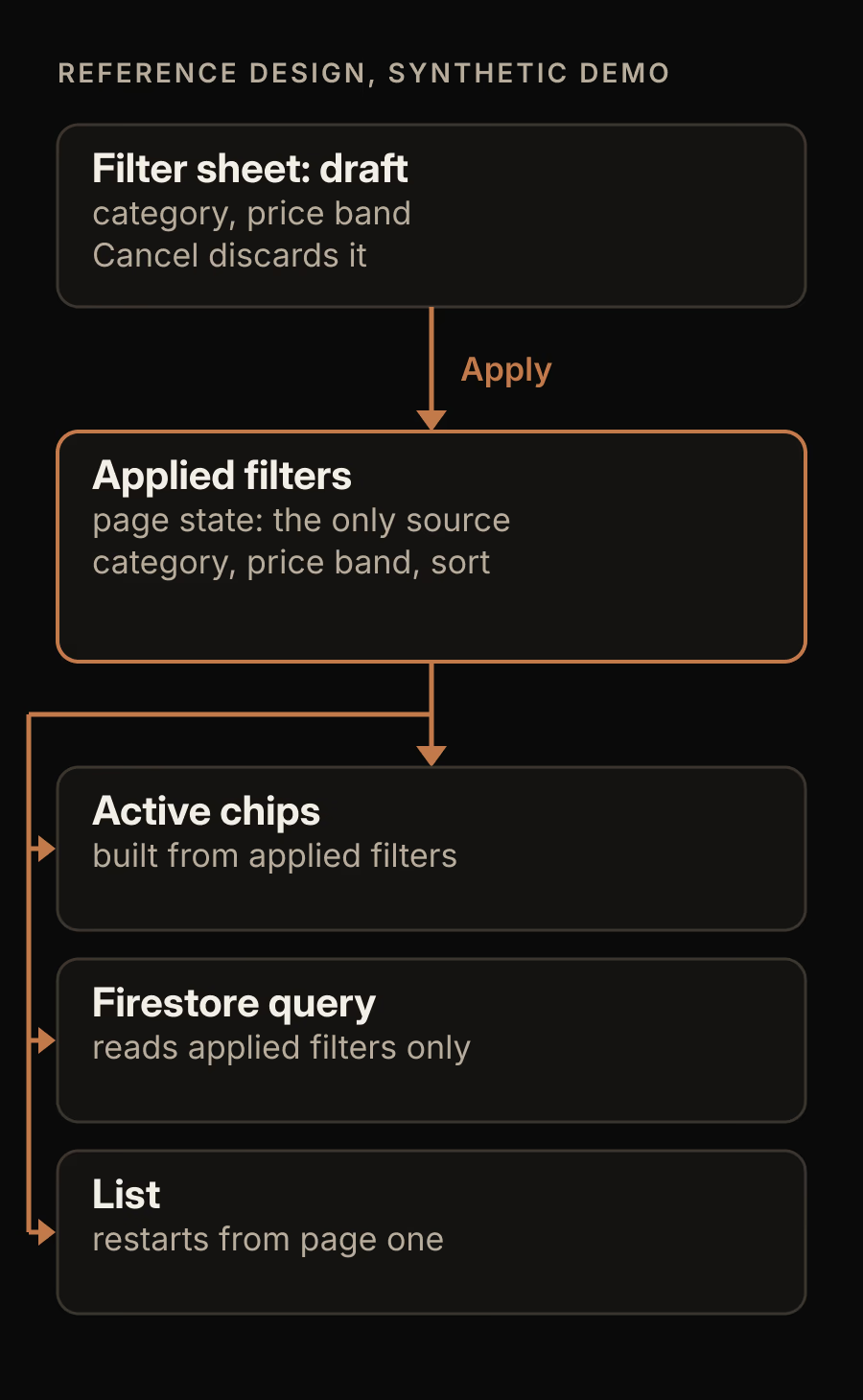
The diagram shows the version this guide builds. Only the applied filters are a source of truth. The chips, the query and the list are outputs of that model, so there is no second copy that can fall out of date. The draft in the sheet is deliberately separate, and its arrow points one way.
Each stale symptom maps to a copy that was missed:
| What the user sees | Copy that was not updated |
|---|---|
| A removed chip, but results are still filtered | The query variable, because the chip changed widget state only |
| Results are correct, but a chip is still visible | The chip row, because it reads the sheet's widget state |
| A highlighted option when the sheet opens after Clear all | The sheet's own selection |
| New filter applied, but the list starts mid-way | The loaded pages from the previous query |
The demo catalog and its filter model
The demonstration uses one Firestore collection, demoProducts. Each document has name, category (a string such as lamps), priceBand (one of under25, 25to75 or over75), price (a number) and createdAt (a timestamp).
The price filter uses the priceBand string rather than a numeric range on price, because of a Firestore ordering rule. The order and limit guide says that when a query has a range filter, the first ordering must be on the same field. A range filter on price would therefore stop you from sorting the filtered list by createdAt. Equality filters on category and priceBand combine with either sort order, at the cost of fixed price bands. If your product needs a free price slider, you have to accept price as the first ordering whenever the slider is active.
Create three page state variables on the catalog page:
appliedCategory, a nullable String with no initial value.appliedPriceBand, a nullable String with no initial value.sortKey, a String with the initial valuenewest. The other value in the demo ispriceLow.
A null value means "no filter on this field". That choice matters in the next section, because FlutterFlow treats a null filter value differently from an empty string. The page state documentation describes the Initial Field Value and Nullable settings used here.
Keep sheet selections as a draft until Apply
Users expect to try options in a filter sheet and then either apply them or back out. If each tap in the sheet writes straight into page state, the list reloads behind the sheet, and dismissing the sheet cannot undo the change. Give the sheet its own draft.
Build the sheet as a component with two String parameters, initialCategory and initialPriceBand, and one Action parameter, onApply, which takes two String parameters for the chosen category and price band. The callbacks documentation explains Action parameters, parameters on the action itself, and the Execute Callback action. Inside the component, give each ChoiceChips widget an Initial Option bound to the matching parameter, so the sheet opens showing what is applied right now.
The Apply button runs Execute Callback with the two chip selections and then closes the sheet. The Cancel button and a swipe down only close it. Nothing outside the sheet has changed in that case, so there is nothing to undo.
On the catalog page, the onApply handler reads the values through Callback Parameters and writes them to appliedCategory and appliedPriceBand with Update Page State. Because the sheet is built from the applied values every time it opens, a sheet opened after Clear all shows no selection. You do not need to clear the chips inside a sheet that is not on screen.
If you use multi-select chips, the ChoiceChips documentation describes a Clear All/Select All action that can provide a "Reset" button inside the sheet. It requires Allow Multiselect on the widget, and it clears the draft, not the applied filters.
Bind the query to the applied filters only
Select the ListView and add a Query Collection backend query on demoProducts. Add two filters: category equal to appliedCategory, and priceBand equal to appliedPriceBand.
Leave Filter on Null Values switched off. The query collection documentation says that by default, if a filter value is null, the query ignores that filter. That is what makes a null appliedCategory mean "all categories". The same page describes a separate option, Ignore Empty Filter Values, which is disabled by default. While it is disabled, an empty string is a real filter value and the query looks for documents whose field is empty. Keeping "no filter" as null rather than "" avoids depending on that second option.
Add the ordering for the current sort. With newest, order by createdAt decreasing. Firestore needs a composite index for an equality filter combined with an ordering on another field, and the index overview says a query without its index fails with an error message containing a link to create it. Each filter combination you allow is a separate query shape, so run each combination once during development and create the indexes it asks for.
The query must read only the three page state variables. If a filter value comes from a ChoiceChips widget state anywhere in the query, the list will follow the sheet's draft rather than the applied model.
Chips are built from the applied query
The chip row above the list answers one question: which filters is this list using? Build it from page state, not from any form widget.
Use a Row with one small button per applied value, each shown with Conditional Visibility when its variable is not null. Label each one with the field and value, for example "Lamps" with a close icon, and give the button a semantic label such as "Remove category filter: Lamps". The Flutter accessibility guide recommends tappable targets of at least 48 by 48 pixels and a contrast ratio of at least 4.5:1, and it asks that a screen reader can describe every control.
Each chip's action sets one variable back to null with Update Page State. The Clear all button sets both filter variables to null in the same action flow. The Update Page State action offers an update type of Rebuild Current Page or No Rebuild. Use No Rebuild on the first update and Rebuild Current Page on the last, so the page rebuilds once with both values already cleared.
Decide whether Clear all also resets sortKey. The demo keeps the sort, because sort is a preference about order and the chips describe filters, but either choice works if the button label says which one happens.
Changing the sort must restart the list

The illustration shows why paging state cannot survive a change of query. Firestore pages through results with query cursors, which mark a start point in one query's ordered results. A cursor taken from a list ordered by date does not describe a position in a list ordered by price, and the pages already loaded belong to the old ordering.
Turn on Enable Infinite Scroll in the ListView's query and choose a page size. The query collection documentation says this loads results in pages as the user scrolls, and that Listen For Changes is enabled automatically when infinite scroll is on. It does not say whether a paged list starts again from page one when a variable used in its filters or ordering changes. That is the behavior acceptance check 4 tests.
For the ordering itself, a FlutterFlow query's Order By is configured per query, so the demo uses a ConditionalBuilder with one branch per sortKey value. The newest branch holds a ListView ordered by createdAt decreasing, and the priceLow branch holds a copy ordered by price increasing, with the same two filters. Each branch has its own list and its own query, so switching the sort should show a separate list that starts at the top. Check 4 confirms this in your build.
The table below is the contract each action must satisfy:
| Event | Applied filters | Chips | List |
|---|---|---|---|
| Apply in the sheet | Replaced by the draft | Rebuilt from page state | Starts at page one |
| Cancel or swipe the sheet away | Unchanged | Unchanged | Unchanged, same scroll position |
| Remove one chip | That field set to null | That chip hidden | Starts at page one |
| Clear all | Both filters set to null | All hidden | Starts at page one, full catalog |
| Change sort after scrolling | Unchanged | Unchanged | Other branch, starts at page one |
| Back from a product detail | Policy decision, see below | Match the applied filters | Same results as before |
When the built-in list cannot reset: own the cursor in code
If check 4 shows earlier pages surviving a filter change in your project, move the list into a custom widget that receives the three filter values as parameters. The widget then owns both the cursor and the loaded items, and resets them together. The guide to when FlutterFlow custom code is the right call covers that trade-off, and the anatomy of a FlutterFlow custom widget explains where parameters and imports go.
The core of such a widget is small. This excerpt omits the widget class, the build method and the scroll trigger:
class _CatalogListState extends State<CatalogList> {
  static const _pageSize = 20;
  final _items = <QueryDocumentSnapshot<Map<String, dynamic>>>[];
  QueryDocumentSnapshot<Map<String, dynamic>>? _cursor;
  bool _hasMore = true;
  bool _loading = false;
  int _generation = 0;

  @override
  void initState() {
    super.initState();
    _loadMore();
  }

  @override
  void didUpdateWidget(CatalogList old) {
    super.didUpdateWidget(old);
    final changed = old.category != widget.category ||
        old.priceBand != widget.priceBand ||
        old.sortKey != widget.sortKey;
    if (changed) {
      // The cursor and the loaded pages belong to the old query.
      _generation++;
      _items.clear();
      _cursor = null;
      _hasMore = true;
      _loading = false;
      _loadMore();
    }
  }

  Query<Map<String, dynamic>> _query() {
    Query<Map<String, dynamic>> q =
        FirebaseFirestore.instance.collection('demoProducts');
    if (widget.category != null) {
      q = q.where('category', isEqualTo: widget.category);
    }
    if (widget.priceBand != null) {
      q = q.where('priceBand', isEqualTo: widget.priceBand);
    }
    return widget.sortKey == 'priceLow'
        ? q.orderBy('price')
        : q.orderBy('createdAt', descending: true);
  }

  Future<void> _loadMore() async {
    if (_loading || !_hasMore) return;
    _loading = true;
    final generation = _generation;
    var q = _query().limit(_pageSize);
    final cursor = _cursor;
    if (cursor != null) q = q.startAfterDocument(cursor);
    final page = await q.get();
    // A newer filter or sort arrived while this page was loading.
    if (!mounted || generation != _generation) return;
    setState(() {
      _items.addAll(page.docs);
      if (page.docs.isNotEmpty) _cursor = page.docs.last;
      _hasMore = page.docs.length == _pageSize;
      _loading = false;
    });
  }
}
The generation counter handles a fast user. If they change the sort while page two is still loading, the late response finds a newer generation and is dropped, so it cannot append old results to the new list. The didUpdateWidget reference says the framework always calls build afterwards, so the reset does not need its own setState. This version reads once with get() and does not listen for live changes, which is a difference from FlutterFlow's infinite scroll. Error handling is left out for length. A production version needs a retry state for a failed page.
No matches is not an empty catalog
A filtered list with zero results needs a different message from a catalog with zero products. "No products yet" after a narrow filter tells the user the shop is empty, and they leave.
The Backend Query documentation describes an empty list widget for scrollable widgets with a query, which can be a component. Make that component take a boolean parameter, hasActiveFilters, and pass true when either filter variable is not null. When it is true, show "No products match these filters" with a Clear all button that runs the same action flow as the chip row. When it is false, show the message for a genuinely empty catalog.
Keep the chip row visible above the empty state. The user can then see which filter produced nothing and remove just that one.
Decide what Back restores
When a user opens a product and comes back, they usually expect the same filtered list. Whether they get it depends on how they return, and the FlutterFlow page state documentation does not say what happens to page state when a user navigates back. Pick a policy and build each route to match it.
- Restore the filters while the catalog page stays in the stack. Open the detail page with Navigate To, and return with Navigate Back. The navigation overview describes the stack as last in, first out, so going back reveals the catalog page the user left. Acceptance check 5 confirms that its page state survived in your build.
- Restore the filters even when the catalog page is rebuilt. Store the applied values in app state instead of page state. The state management notes say an app state variable marked Persisted is saved on the device with Shared Preferences and survives a restart. Persisting filters across restarts is often more than a shopper expects, so use plain app state unless you want that.
- Start fresh on purpose. A route that uses Navigate To with Replace Route changes the stack, and a navigation that creates a new catalog page starts with the initial values. If the product should reset filters in those cases, say so in the page, for example with the empty chip row.
Whatever you choose, check the Android back button and the browser back button too. The same page navigation documentation notes that Allow Back Navigation does not affect the Android back button.
Run the five acceptance checks
Seed the demo collection with enough synthetic products to fill at least three pages in each category, then run these checks on a device or in Test Mode:
- Apply several filters. Open the sheet, choose a category and a price band, and tap Apply. Expected: two chips appear, every row matches both filters, and the list starts at the top. Then open the sheet and tap Cancel after changing a chip. Expected: nothing on the page changes.
- Clear one chip. Remove the price chip. Expected: the category chip remains, results include every price band in that category, and no row from another category appears.
- Clear all. Expected: no chips, the full catalog from the first product, and a sheet that opens with no selection.
- Change the sort after pagination. Scroll until at least two pages have loaded, then switch to
priceLow. Expected: the list starts with the cheapest matching product and contains no rows in date order. Repeat with a filter change instead of a sort change. If rows from the earlier pages remain, move to the custom widget above. - Return from a detail screen. With filters applied, open a product and go back with the in-app control, the Android back button and, on web, the browser button. Expected: the behavior your Back policy promises, with chips that match the results each time.
Write down any check that fails and which copy of the state it points to, using the table near the top of this guide.
Where this design stops
This guide covers equality filters on a single Firestore collection with two fixed sort orders. Free-text search is a separate problem. The Firestore text search guide requires an Enterprise edition database and text indexes, and this guide uses ordinary queries. Multi-select filters such as "any of three categories" need an in filter, which has its own limits and indexes to check in the Firestore query documentation before you build on it. Supabase queries in FlutterFlow have different rules, including the requirement in the query collection documentation that infinite scroll on Supabase must be ordered by a primary key.
Price bands are also a product decision. They keep sort orders free, but a shopper who wants items between 30 and 40 cannot express that. If that matters more than sorting by date, use a range filter on price and accept price as the first ordering.
Start with the chip row on your own catalog page. If any chip reads from a ChoiceChips widget state rather than a page or app state variable, change that binding first and run checks 2 and 3 again.