
A check-in screen shows a pin, a time and the words "Location saved". The pin can be twenty minutes old because it came from the device cache. It can be a guess several kilometres wide because the user chose approximate location. It can also be the last point before the phone locked, while the screen promised that recording continued. Latitude and longitude alone cannot tell these apart, and neither can the person reading the log later.
The fix is to treat every saved position as an observation with evidence attached. Store when the platform determined it, how accurate the platform says it is, where the app got it and what access the user granted. Record only while the screen is in use, between an explicit Start and Stop, and write an honest gap when the app leaves the foreground. This article builds that foreground-only log in Flutter with the geolocator package (version 14.1.2 at the time of writing) and Firestore.
All coordinates, routes and session IDs below are synthetic demonstration data. The Dart snippets are reference code checked against the current package and platform documentation; they were not run on a device for this article, so run the checks in the last section before you ship.
What should one log entry store?
A log entry should store the position plus four pieces of context: observation time, reported accuracy, source and access level. Without them, a stale or approximate point looks exactly like a fresh precise one.
| Field | Comes from | Why it matters |
|---|---|---|
latitude, longitude | Position | The point itself |
accuracyMeters | Position.accuracy | Radius of uncertainty; drawn as a circle, not a pin |
observedAt | Position.timestamp | When the platform determined the fix |
receivedAt | DateTime.now() in the app | When your code got it; a large gap means cached or delayed |
source | Your code | current, lastKnown or stream |
accuracyStatus | getLocationAccuracy() | precise or reduced (approximate) |
isMocked | Position.isMocked | Android only: the fix came from a mock provider |
The Position API reference defines accuracy as "the estimated horizontal accuracy of the position in meters" and timestamp as "the time at which this position was determined". That second field is the one most logs drop, and it is the one that exposes a cached position.
enum SampleSource { current, lastKnown, stream }

class LocationSample {
  LocationSample.fromPosition(
    Position p, {
    required this.sessionId,
    required this.source,
    required this.reducedAccuracy,
  })  : latitude = p.latitude,
        longitude = p.longitude,
        accuracyMeters = p.accuracy > 0 ? p.accuracy : null,
        observedAt = p.timestamp,
        receivedAt = DateTime.now(),
        isMocked = p.isMocked;

  final String sessionId;
  final double latitude;
  final double longitude;
  final double? accuracyMeters; // null when the platform gave no usable value
  final DateTime observedAt;
  final DateTime receivedAt;
  final SampleSource source;
  final bool reducedAccuracy;
  final bool isMocked;

  Map<String, Object?> toFirestore() => {
        'lat': latitude,
        'lng': longitude,
        'accuracyMeters': accuracyMeters,
        'observedAt': Timestamp.fromDate(observedAt),
        'receivedAt': Timestamp.fromDate(receivedAt),
        'source': source.name,
        'accuracyStatus': reducedAccuracy ? 'reduced' : 'precise',
        'isMocked': isMocked,
      };
}
Apple documents that a negative horizontalAccuracy means the latitude and longitude are invalid, which is why the constructor stores null rather than a non-positive radius. Treat such a sample as unusable instead of plotting it.
Ask for foreground access when the user taps Start
Request location only when the user starts the feature, and ask for foreground access alone. Android's runtime permission guide says to wait until the user interacts with the feature, and to request background access separately, later, if a feature ever needs it. This log never does.
On Android, declare ACCESS_COARSE_LOCATION, and add ACCESS_FINE_LOCATION only if the log genuinely needs precise points. The same guide warns that requesting fine location by itself is ignored on some Android 12 releases, so precise access must be requested together with coarse. Do not declare ACCESS_BACKGROUND_LOCATION. On iOS, add NSLocationWhenInUseUsageDescription to Info.plist with a sentence that matches what the screen actually does. The geolocator README also documents a BYPASS_PERMISSION_LOCATION_ALWAYS build setting for apps that never request "always" access.
enum LocationAccess { ready, serviceOff, denied, deniedForever }

Future<LocationAccess> requestForegroundAccess() async {
  if (!await Geolocator.isLocationServiceEnabled()) {
    return LocationAccess.serviceOff;
  }
  var permission = await Geolocator.checkPermission();
  if (permission == LocationPermission.denied) {
    permission = await Geolocator.requestPermission();
  }
  switch (permission) {
    case LocationPermission.whileInUse:
    case LocationPermission.always:
      return LocationAccess.ready;
    case LocationPermission.deniedForever:
      return LocationAccess.deniedForever;
    default:
      return LocationAccess.denied;
  }
}
Each result needs its own screen state, because each needs a different action from the user.
| Result | What the screen says | Action offered |
|---|---|---|
serviceOff | Location services are off on this device | Open location settings |
denied | The log needs location while this screen is open | Try again |
deniedForever | Location is blocked for this app | Open app settings |
ready | Ready to record | Start |
The README notes that on Android checkPermission() cannot return deniedForever; only requestPermission() can detect it. That is why the code asks again after a plain denial instead of trusting the first check. Geolocator.openAppSettings() and Geolocator.openLocationSettings() open the system screens, though on web they throw UnsupportedError.
Approximate access is a valid answer
When the user grants approximate location, keep the feature working and label every point as approximate. Android's location permissions page says your app "should still work when the user grants only approximate location access", and the user can make that choice even when you request precise access.
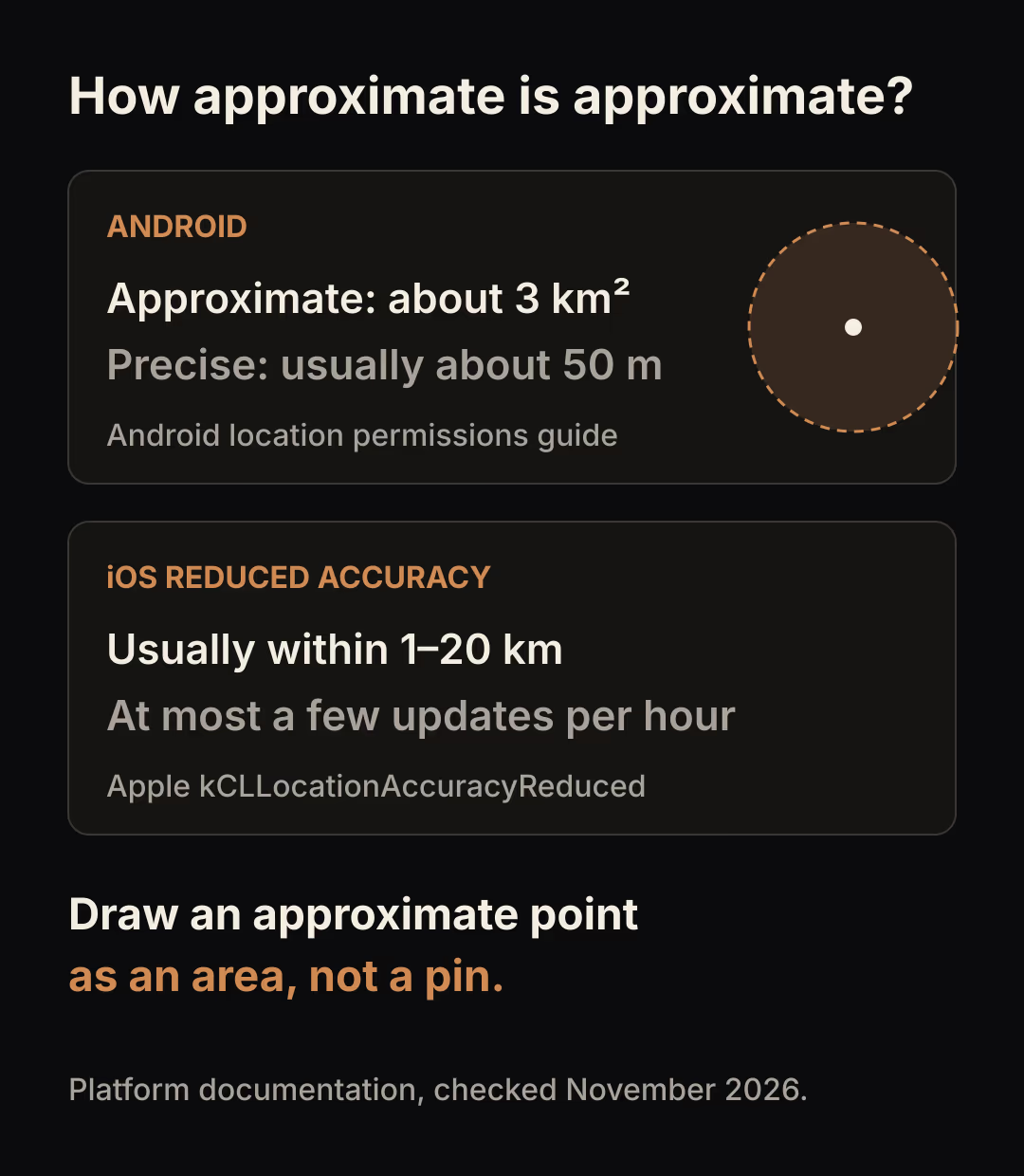
The two platforms describe very different scales. Android puts approximate location within about 3 square kilometres and precise location usually within about 50 metres. Apple's kCLLocationAccuracyReduced page says reduced accuracy is "usually within 1–20 kilometers of the actual location" and is updated "at most a few times per hour". A route drawn from reduced samples is therefore mostly fiction, and a check-in from one tells you the area, not the doorstep.
// Call only after requestForegroundAccess() returned ready.
// On Android this throws PERMISSION_DENIED before a grant.
final reduced =
    await Geolocator.getLocationAccuracy() == LocationAccuracyStatus.reduced;
Show reduced samples as a shaded area and keep the "Approximate" label in the saved record, so a later reader sees the same caveat. If one task really needs precision on iOS 14 and later, Geolocator.requestTemporaryFullAccuracy(purposeKey: ...) asks for it with a reason taken from the NSLocationTemporaryUsageDescriptionDictionary entry in Info.plist. Apple's documentation says that grant expires automatically. On Android, upgrading means requesting fine and coarse together again. Android's runtime guide adds that a downgrade from precise to approximate in system settings restarts your app's process, so read the accuracy status at each session start rather than caching it.
A cached position is not a current fix
Use the last known position only as a placeholder, and save it only if it passes the same freshness check as a live fix. The geolocator README warns that getLastKnownPosition() can return null "when no location details are available", and it is unsupported on web. Apple's CLLocationManager.location page goes further: the stored location may be old, and "it is always a good idea to check the timestamp".
// Example thresholds for a walking check-in. Choose your own.
const maxFixAge = Duration(minutes: 2);
const maxAccuracyMeters = 100.0;

bool isUsableFix(Position p, {required bool reduced}) {
  final age = DateTime.now().difference(p.timestamp);
  if (age > maxFixAge || p.accuracy <= 0) return false;
  // Approximate fixes fail any tight radius by design; keep them labelled.
  return reduced || p.accuracy <= maxAccuracyMeters;
}

Future<LocationSample?> checkIn(String sessionId, bool reduced) async {
  try {
    final p = await Geolocator.getCurrentPosition(
      locationSettings: const LocationSettings(
        accuracy: LocationAccuracy.high,
        timeLimit: Duration(seconds: 20),
      ),
    );
    if (!isUsableFix(p, reduced: reduced)) return null;
    return LocationSample.fromPosition(p,
        sessionId: sessionId,
        source: SampleSource.current,
        reducedAccuracy: reduced);
  } on TimeoutException {
    return null; // show "No current fix yet", never the cached pin
  }
}
The two thresholds are illustrative, not platform values. A delivery check-in might accept 50 metres, a city-level weather note might accept much more. With reduced access, a tight radius would always fail, so the code skips the radius test and relies on the sample's reduced label, but it still rejects an old fix. Because iOS updates reduced locations at most a few times per hour, you may choose a longer age limit for approximate check-ins and show that age to the user. When checkIn returns null, tell the user that the device has no current fix and let them retry outdoors or cancel. Do not quietly substitute getLastKnownPosition(). If you show the cached point on the map while waiting, label it with its age. The wait can be long: the README notes that with coarse-only access on Android, positions come from the network and the first fix can take minutes.
Record a session between Start and Stop
A route log is a stream subscription that exists only between the user's Start and Stop taps. Configure it for foreground use explicitly, because one platform default points the other way.
LocationSettings foregroundSettings() {
  switch (defaultTargetPlatform) {
    case TargetPlatform.android:
      return AndroidSettings(
        accuracy: LocationAccuracy.high,
        distanceFilter: 20, // metres between updates
        intervalDuration: const Duration(seconds: 15),
        // No foregroundNotificationConfig: no foreground service.
      );
    case TargetPlatform.iOS:
      return AppleSettings(
        accuracy: LocationAccuracy.high,
        distanceFilter: 20,
        activityType: ActivityType.fitness,
        allowBackgroundLocationUpdates: false, // the default is true
      );
    default:
      return const LocationSettings(
        accuracy: LocationAccuracy.high,
        distanceFilter: 20,
      );
  }
}
The AppleSettings reference lists allowBackgroundLocationUpdates with a default of true, so a foreground-only feature should set it to false and leave the location background mode out of the app. On Android, setting foregroundNotificationConfig runs the plugin as a foreground service with a persistent notification. That is background tracking with a notice attached, which is a different product promise, and Android's background location limits also warn that near real-time updates over a long period make battery life "significantly shorter". A 20 metre distance filter and a 15 second interval are example values that trade path detail for power.
class LocationLogSession {
  LocationLogSession(this.sessionId, this.store);

  final String sessionId;
  final SampleStore store; // writes samples; sketched in the upload section
  StreamSubscription<Position>? _sub;
  bool _reduced = false;

  Future<void> start() async {
    _reduced = await Geolocator.getLocationAccuracy() ==
        LocationAccuracyStatus.reduced;
    await store.markState(sessionId, 'recording');
    _sub = Geolocator.getPositionStream(
      locationSettings: foregroundSettings(),
    ).listen(
      (p) => store.add(LocationSample.fromPosition(p,
          sessionId: sessionId,
          source: SampleSource.stream,
          reducedAccuracy: _reduced)),
      onError: (Object e) => store.markState(sessionId, 'interrupted'),
    );
  }

  Future<void> pause() async {
    await _sub?.cancel();
    _sub = null;
    await store.markState(sessionId, 'paused');
  }

  Future<void> stop() async {
    await _sub?.cancel();
    _sub = null;
    await store.markState(sessionId, 'stopped');
  }
}
Stop is the one transition that must never fail silently. Cancel the subscription before you update the state, and make the Stop button visible on every recording screen, not hidden behind a menu.
What happens when the app leaves the screen?
When the app moves to the background, a foreground-only log should stop recording and say so. Assuming the stream keeps running produces a route with a straight line across the period nobody recorded.

The platforms behave differently here, and neither matches "keeps tracking". Apple's background updates guide says the system suspends most apps shortly after they move to the background, suspended apps "don't receive location updates", and the system instead queues updates and delivers them when the app runs again. Android, from version 8.0, gives background apps location updates "only a few times each hour". Either way, the points you would receive describe some of that period, late and sparse.
A paused state, written to the session record, fixes the honesty problem. Flutter's AppLifecycleListener gives you the transitions.
late final AppLifecycleListener _lifecycle;

@override
void initState() {
  super.initState();
  _lifecycle = AppLifecycleListener(
    onHide: () => session.pause(),
    onShow: () => setState(() => showPausedBanner = true),
  );
}

@override
void dispose() {
  _lifecycle.dispose();
  super.dispose();
}
On return, show the gap with its times, for example "Paused 14:02 to 14:19, not recorded", and offer Resume or Stop. Do not resume automatically; the user decides whether the gap matters. If you ever keep a subscription alive across a pause, updates that iOS queued arrive late with an observedAt inside the gap, which is another reason to sort and draw by observation time rather than arrival time.
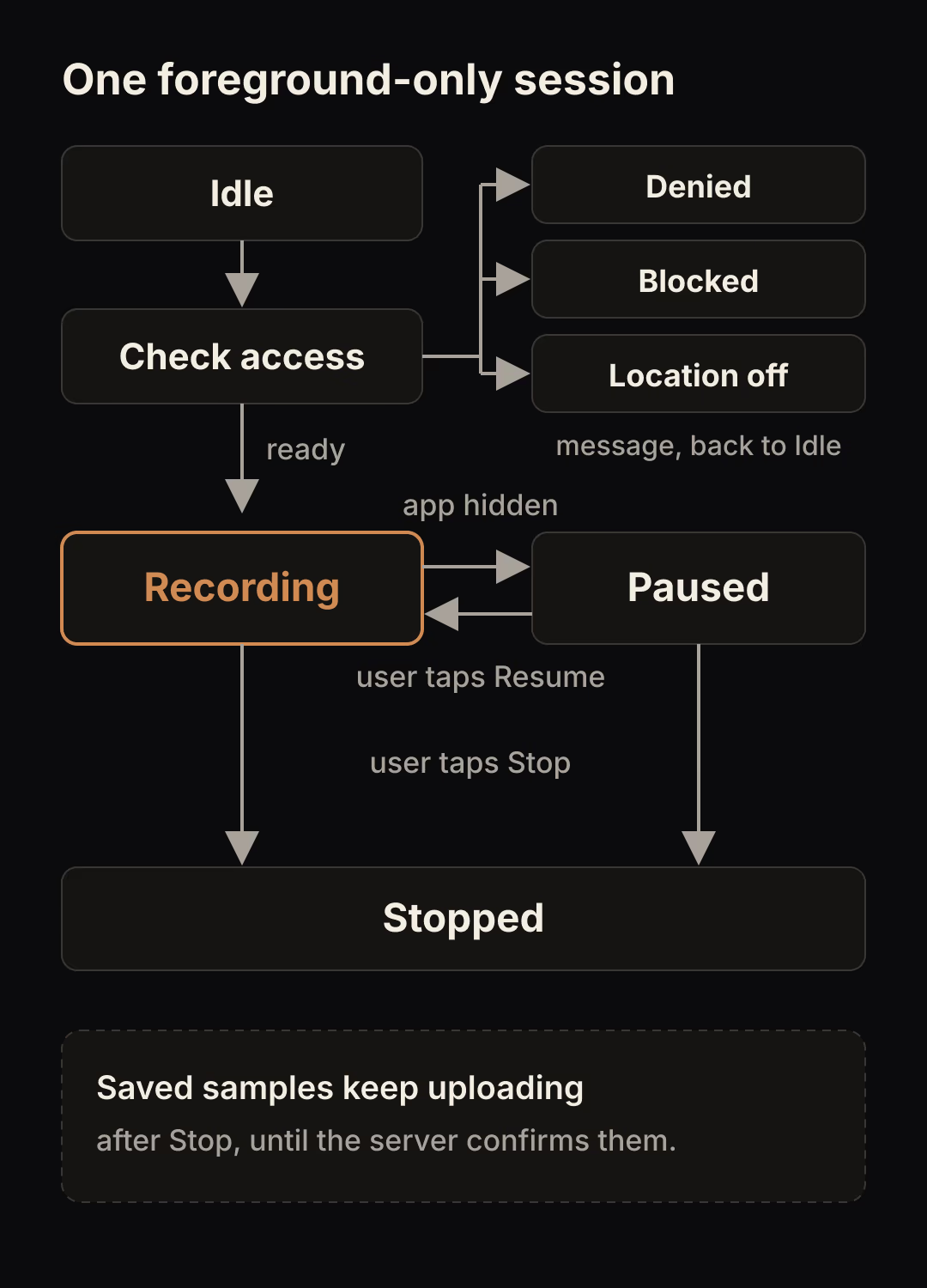
The diagram is the whole promise of the feature. Recording happens in one state, the user moves between states with visible controls, and uploading is separate from recording. Android also lets a feature keep foreground access while backgrounded through a foreground service, as its permissions page explains, but that is the background-tracking product this design deliberately leaves out.
Save on the device first, upload when online
Write samples to Firestore as they arrive and let its offline queue carry them to the server. Firebase's offline guide says persistence is enabled by default on Android and Apple platforms and that writes made offline are synced when the device reconnects.
class SampleStore {
  SampleStore(this.db);
  final FirebaseFirestore db;

  Future<void> add(LocationSample s) => db
      .collection('locationSessions')
      .doc(s.sessionId)
      .collection('samples')
      .add(s.toFirestore());

  Future<void> markState(String sessionId, String state) => db
      .collection('locationSessions')
      .doc(sessionId)
      .set({'state': state, 'stateChangedAt': Timestamp.now()},
          SetOptions(merge: true));
}
Do not block the screen on these writes. Firestore applies them to the local cache before sending them, and while the device is offline the server cannot accept or reject anything until it reconnects. Show "Saved on this device" until the server confirms, and "Uploaded" afterwards. The article on rejected offline writes covers how to read pending-write metadata and what happens when Security Rules refuse a queued write later. For this log, the rules should at least require that the signed-in user owns the session and that accuracyMeters is a number or null.
Two limits apply. The web keeps Firestore persistence off unless you enable it. And the local queue lives in the app's storage, so uninstalling the app before reconnecting loses unsent samples. Say that in the paused or offline banner instead of calling the log "saved".
What FlutterFlow gives you and where custom code starts
FlutterFlow's Current Device Location global property returns latitude and longitude, which is enough to centre a map or store a single rough check-in. Its documentation does not describe a timestamp, an accuracy value, an approximate-access state or what the property holds after a denial, and it cannot be tested in Test mode.
A log that keeps the fields in the table above needs a custom action calling geolocator, plus a custom widget or page code for the lifecycle listener and session states. That is a reasonable point to move this one feature into code while keeping the rest of the app in the visual builder; the guide on when to drop from FlutterFlow custom code to pure Flutter helps decide how far to go.
Run these checks on a real device
Run each case on at least one Android and one iOS device, because permission dialogs, approximate behavior and lifecycle timing differ between them and between OS versions.
| Case | How to trigger it | Expected result |
|---|---|---|
| Approximate access | Choose Approximate (Android) or turn off Precise Location (iOS) | Session records; every sample is reduced and drawn as an area |
| Denied once | Deny the dialog | "Needs location" message with Try again; nothing saved |
| Blocked | Deny until the OS stops asking, or block in settings | Open app settings action; no request loop |
| Location services off | Turn off location in system settings | Open location settings action |
| Stale cached fix | Check in indoors, or after travel with location off | "No current fix yet"; no old pin saved as current |
| Pause and resume | Start, go to the home screen for a few minutes, return | Session shows Paused with times; no line drawn across the gap |
| Offline upload | Airplane mode during a session, then reconnect | "Saved on this device", then "Uploaded" after reconnect |
| Deliberate stop | Tap Stop, then walk | Subscription cancelled; no new samples arrive |
| Mock location | Select a mock location app in Android developer options | Samples carry isMocked: true |
On Android 12 and later, also change the app's accuracy from precise to approximate in system settings during a session. Android restarts the process, so on launch treat any session still marked recording as paused, and show it that way.
Limits of this design
This log is honest about what it records, which also means it records less. It has no coverage while the screen is hidden, approximate samples cannot reconstruct a path, and indoor or underground check-ins may fail the freshness test. If your product genuinely needs a route while the phone is in a pocket, that is a background location feature with its own permission request, platform policy review and battery cost. Android's permissions page also says that apps targeting Android 17 or later whose features need only session-based location must use the system location button under Google Play policy, so check whether your feature falls under that rule for your target SDK. For scheduled work that is not tied to location, read about Flutter background work with isolates and WorkManager, and for where location logging fits in a wider stack, see how Flutter and Firebase fit a SaaS mobile app.
Start by adding observedAt, accuracyMeters and source to your existing location records, even before the session work. After a week of test sessions, compare the two timestamps and count how many points were already older than your threshold when your code received them.