
You send a link to an emulator with one terminal command, the app jumps to the right screen, and the ticket moves to Done. A week later a tester taps the same link in a chat app on a release build and lands on the website instead. Nothing in the Dart code changed. The test you ran and the path a real user takes went through different checks.
The short answer: a link that opens your app has to pass four separate layers, and most quick tests skip at least one of them. The website must host a valid association file, the operating system must verify that file against the exact build installed on the device, the app must receive the URL, and your router must map it to a screen. Test each layer on its own, then tap the link the way a user would on a release-signed build.
Everything below uses a synthetic demonstration: the domain links.example.com, the Android package com.example.linkdemo, the iOS app ID ABCDE12345.com.example.linkdemo and the path /recipes/42. The commands and configuration follow the current Flutter, Android and Apple documentation. They were not executed on devices for this article, so the last section lists the checks you still need to run and record.
Why does a link work in testing and fail after install?
Most shortcuts deliver the URL straight to the app and never ask the operating system whether your domain trusts that build. The Flutter App Links cookbook says this directly about its adb test command: it launches the app even if the web files are missing, so it proves the routing setup and nothing about hosting or verification.
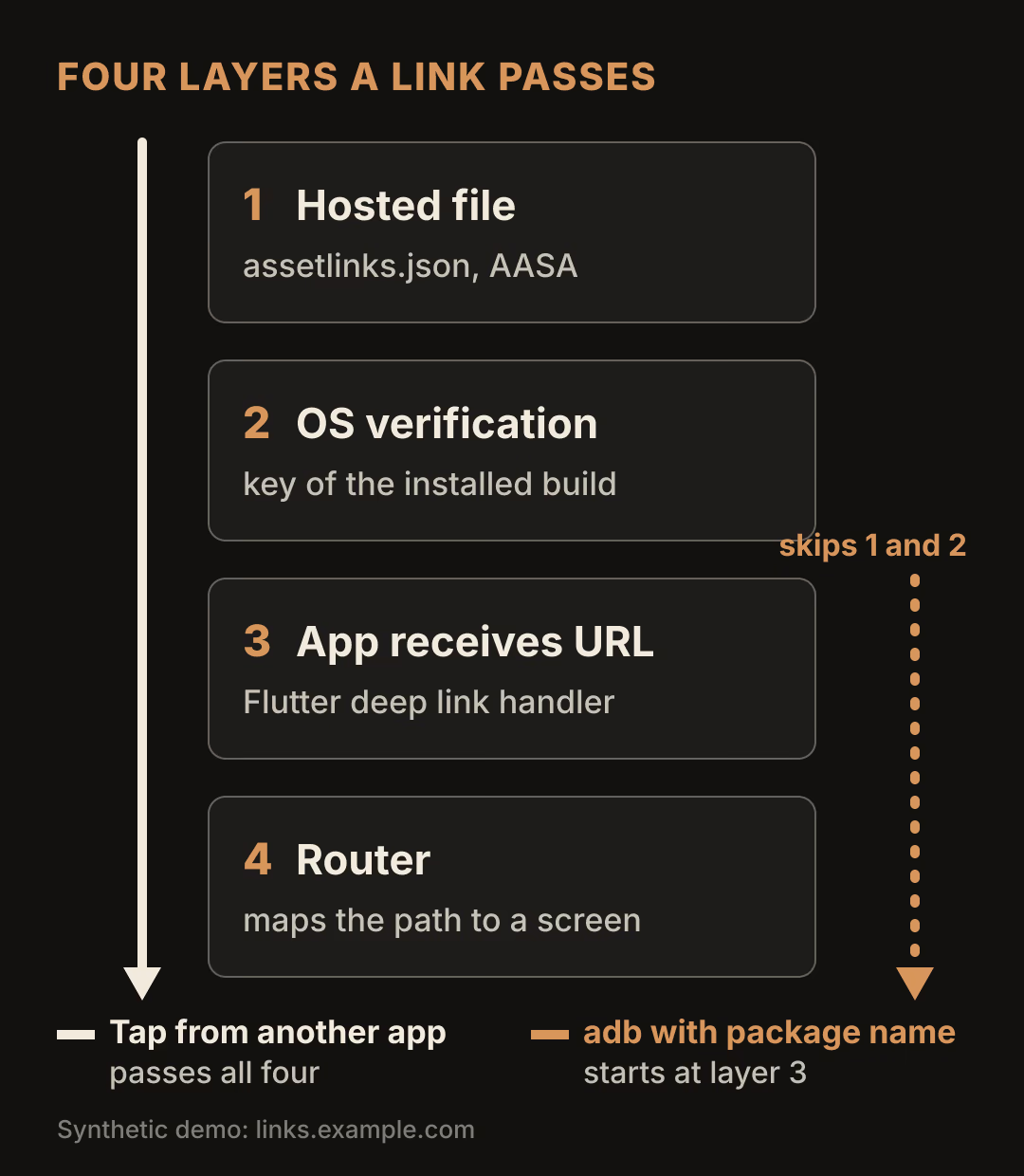
The diagram shows where each common test enters. A forced launch starts at the third layer, so a broken association file or a wrong signing fingerprint stays invisible. A tap from another app goes through all four. That is the only test that matches what users do.
Three documented differences explain most "worked for me" reports:
- Android signing. If you use Play App Signing, Google signs the build users install, and the fingerprint you get by running
keytoolon your upload keystore usually will not match the one on their devices. - Android 12 and later. A web link opens in your app only if the app is approved for that domain. Otherwise it goes to the default browser, with no error shown to the user.
- Apple's developer mode. The
?mode=developersuffix on an associated domain lets a device fetch the file directly from your server, but Apple limits it to apps signed with a development profile on devices where the user opted in. A TestFlight or App Store build is distribution-signed and uses Apple's CDN path instead.
Check the hosted files before you touch the app
Start on the web side, because both platforms fetch the association file over HTTPS and neither will follow a redirect. Android requires https://<domain>/.well-known/assetlinks.json to be served as application/json, over HTTPS, with no 301 or 302 redirect. Apple requires the apple-app-site-association file, with no file extension, at /.well-known/ over HTTPS with a valid certificate and no redirects.
Run curl without -L so a redirect shows up instead of being followed:
for f in assetlinks.json apple-app-site-association; do
  curl -sS -o /dev/null \
    -w "$f  %{http_code}  %{content_type}  redirect=%{redirect_url}\n" \
    "https://links.example.com/.well-known/$f"
done
A passing result is 200 for both files, application/json for the Android file and an empty redirect=. A common failure is a hosting rule that sends example.com to www.example.com. Each host in your manifest needs its own file, because Android requires the file on every domain you declare.
The synthetic Android file looks like this:
[{
  "relation": ["delegate_permission/common.handle_all_urls"],
  "target": {
    "namespace": "android_app",
    "package_name": "com.example.linkdemo",
    "sha256_cert_fingerprints": [
      "<SHA-256 of the key that signs the installed build>"
    ]
  }
}]
The iOS file lists the app ID as team ID plus bundle ID and the paths the app should open, using the components format from the Flutter cookbook:
{
  "applinks": {
    "details": [{
      "appIDs": ["ABCDE12345.com.example.linkdemo"],
      "components": [{ "/": "/recipes/*" }]
    }]
  }
}
Scope components to the paths your app actually handles. A catch-all /* sends every page on the domain to the app, including pages that only exist on the web.
Match the fingerprint to the build on the device
The sha256_cert_fingerprints list must contain the certificate that signed the APK or app bundle installed on the test device. Several builds can be signed by different keys, so the list can hold more than one fingerprint, and Android documents that this field supports multiple fingerprints for debug and production builds.

Find each fingerprint at its source rather than copying an old one:
| Build you install | Where its SHA-256 comes from |
|---|---|
| Local debug build | keytool -list -v on the debug keystore |
| Release build you sign yourself | keytool -list -v -keystore <your release keystore> |
| Build installed from Google Play, including internal testing | Play Console, Release > Setup > App signing, which also shows a ready Digital Asset Links snippet |
The last row is the one that most often breaks after release. Your local release build verifies, the Play build does not, and the only difference is which key signed it. Add the Play app signing fingerprint as well as any key you use for local release testing.
Fingerprints are public values, so they can live in the hosted file. Keystores, keystore passwords and Play service credentials must stay out of the file, the repository and any shared debug output.
Check the iOS entitlement and the signing profile
On iOS the app declares its domains in the Associated Domains entitlement as applinks:links.example.com, with no path, query or trailing slash, as Apple's entitlement format requires. The app ID in the hosted file must match the team ID and bundle ID of the build. Flavors with different bundle IDs each need their own entry in appIDs.
Apple's devices no longer download the file from your server. Since iOS 14 they request it from an Apple-managed CDN, which fetches your file within 24 hours, and devices check for updates roughly once a week after installation. A staging domain that is only reachable over a VPN therefore cannot work for a distribution build. For development you can add ?mode=developer to the entitlement entry, but keep that variant out of the release configuration, because it only applies to development-signed apps.
Personal development teams in Xcode do not support the Associated Domains capability, so testing universal links needs a paid developer team.
Ask the Android device what it verified
Android 12 and later let you rerun verification on an installed app and read the result. These are the commands from the Android verification guide, applied to the demo package:
# Reset the link state, then ask the verifier to run again.
adb shell pm set-app-links --package com.example.linkdemo 0 all
adb shell pm verify-app-links --re-verify com.example.linkdemo

# Wait a few minutes, then read the result.
adb shell pm get-app-links com.example.linkdemo
The device needs an internet connection. Read the state next to your domain:
| State | What it means for your test |
|---|---|
verified | The domain passed verification for this installed build. |
none | Nothing recorded yet. Wait and run the verification again. |
approved or denied | Forced by a shell command, so it says nothing about your hosted file. |
1024 or higher | A verifier-specific error. Check connectivity and the hosted file, then re-verify. |
After verified, send the link through normal intent resolution. Android's guide uses this command without a package name, so the system chooses the handler:
adb shell am start -a android.intent.action.VIEW \
  -c android.intent.category.BROWSABLE \
  -d "https://links.example.com/recipes/42"
Compare it with the cookbook's command that ends with the package name. That version picks your app directly and skips the decision you are trying to test.
File changes reach devices at different speeds. Android 15 and later re-verify in the background and changes can take up to seven days to reach every device. Android 14 and earlier usually pick up changes only when the app is installed or updated. On a test device, reinstalling forces a new check, though server-side caching can still delay the new file.
iOS has no documented equivalent of get-app-links. The practical check is behavioral: type the URL into the Notes app on the device, tap it and see what opens, as the Flutter universal links guide suggests. Flutter DevTools also has a Deep Links validation tab that inspects Android and iOS setup from version 3.27. Use it to catch configuration mistakes early, but it is not a replacement for a tap on an installed release build.
Confirm the router receives the same URL
Once the operating system hands the URL to Flutter, routing is ordinary app code. Since Flutter 3.27 the built-in handler is on by default. If you use a plugin such as app_links to receive links yourself, the Flutter docs say to turn the default handler off with flutter_deeplinking_enabled on Android and FlutterDeepLinkingEnabled on iOS, because the two handlers conflict.
With go_router, make the failure visible instead of silently landing on the home screen:
final router = GoRouter(
  routes: [
    GoRoute(path: '/', builder: (context, state) => const HomeScreen()),
    GoRoute(
      path: '/recipes/:id',
      builder: (context, state) =>
          RecipeScreen(id: state.pathParameters['id']!),
    ),
  ],
  // Shows the received path, not the full URL, so query tokens stay hidden.
  errorBuilder: (context, state) =>
      UnknownLinkScreen(path: state.uri.path),
);
state.uri is the full URI of the matched route. Showing only path gives a tester something to report without exposing query parameters that might carry tokens.
Two router settings can hide a working link. If you set initialLocation, keep overridePlatformDefaultLocation at its default false. When it is true, the initial location takes precedence over the deep link that opened the app. Also check redirects that run at startup. Flutter's deep-linking page documents that on a cold launch, Android passes the link as the initial route while iOS starts at / and receives the link route shortly after. A login or onboarding redirect that sends the user away from / during that moment can drop the link on iOS only. Test that case explicitly.
Run the launch matrix on release builds
Install a release-signed build the way users get it: from Play internal testing on Android and from TestFlight on iOS. Then tap the link from another app, such as a notes or chat app, for each row:
| Case | How to set it up | Passes when |
|---|---|---|
| Cold launch | Close the app fully, then tap the link | The recipe screen for /recipes/42 opens |
| Warm launch | Leave the app open on another screen, then tap | The app comes forward on the recipe screen |
| Unknown path | Tap /recipes/does-not-exist | Your unknown-link screen appears with the path |
| App absent | Uninstall the app, then tap | The browser opens a page that is useful on its own |
| Same domain in Safari | Tap a link on your own site inside Safari | It stays in Safari, which Apple documents as expected |
The app-absent row is a web requirement. On iOS the system opens the URL in the default browser when the app is not installed, and on Android 12 and later an unverified or missing handler sends the link to the browser too. If /recipes/42 returns a 404 on the website, users without the app hit a dead end even when every app check passes.
For each row, record the device model, OS version, build number, how the build was installed and what opened. That record is what lets you say which targets were checked and which still need a device.
What FlutterFlow handles and where custom work starts
FlutterFlow's built-in deep linking covers a custom URL scheme set under Settings & Integrations > General > App Details, with routes defined per page. Its documentation covers universal links and App Links only through the Branch integration, which requires editing AndroidManifest.xml, Info.plist and Runner.entitlements through custom code. The same page states that deep links cannot be tested in Run Mode, so the launch matrix above still applies to an exported or installed build.
If an older project depends on Firebase Dynamic Links, those links stopped working on August 25, 2025. Firebase recommends App Links and universal links for post-install deep linking, and Firebase Hosting can serve both association files.
Opening a screen is not permission to show it
A verified link proves that your domain trusts this app. It says nothing about whether the person holding the link may see recipe 42. The screen the link opens must load its record through the same access checks as any other screen. With Firebase, that means a read that Security Rules evaluate for the signed-in user, followed by a clear "not available" state when the read is refused. Treat link verification and record authorization as separate tests with separate results.
What this article did not test
The configuration, commands and Dart code above were checked against the linked Flutter, Android, Apple, go_router, FlutterFlow and Firebase documentation on November 23, 2026. They were not executed on physical devices or simulators for this article, no real domain was verified, and no signing keys were used. Treat the launch matrix as a procedure to run, not a result. Android Dynamic App Links, deferred deep linking after install and link analytics are out of scope.
Start with the curl check against your own domain today, because it takes a minute and catches redirect and content-type problems before any build. Then add the Play app signing fingerprint to assetlinks.json and run the matrix on one Android and one iOS device. For how links fit with the rest of a mobile backend, see how Flutter and Firebase fit a SaaS mobile app. If a link should open a screen that background work prepared, read how Flutter background work runs with isolates and WorkManager before deciding what the screen can assume on a cold launch.