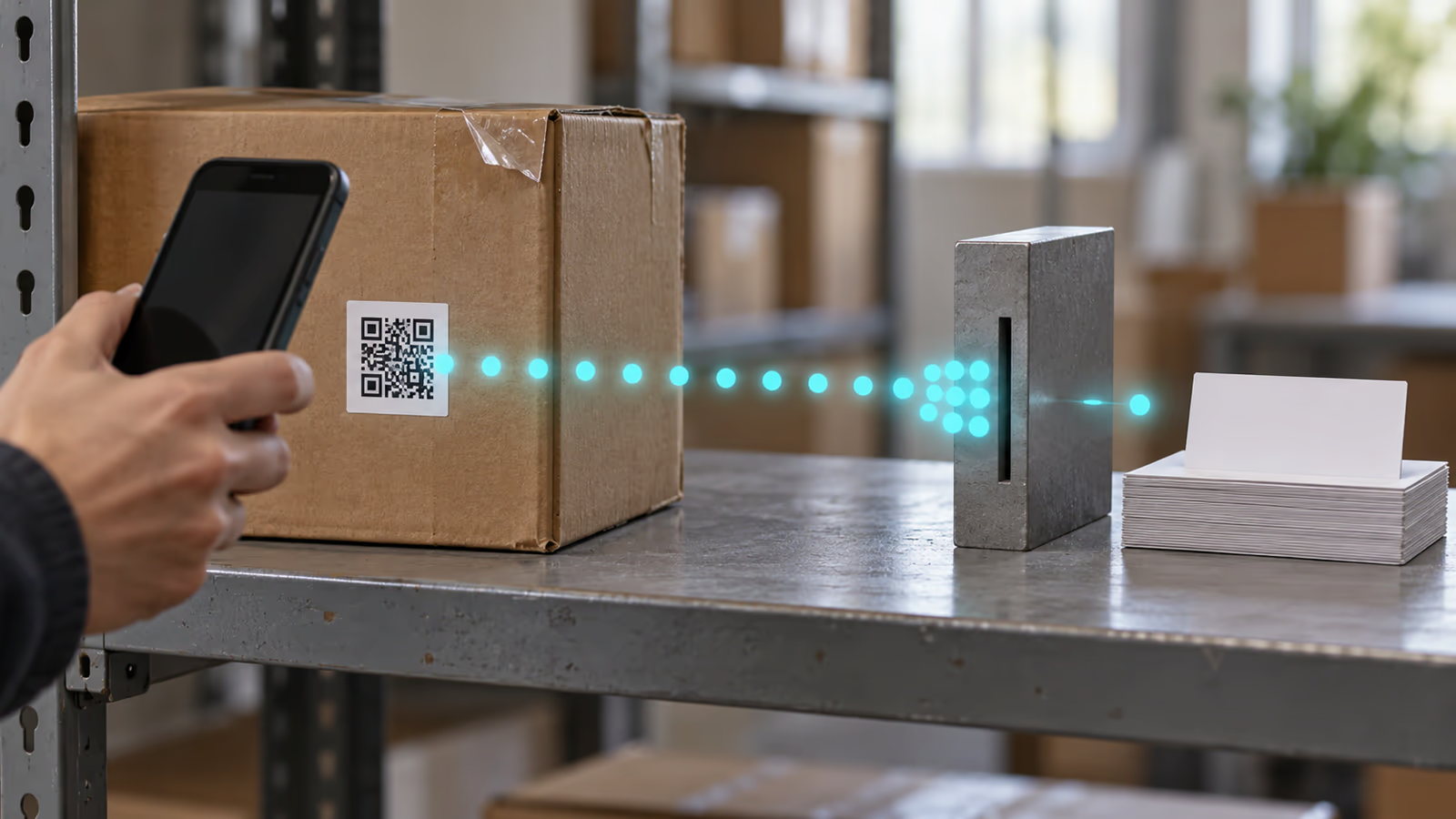
Duplicate stock entries from a QR scanner have two separate causes, and each needs its own fix. The camera reports the same code on many consecutive frames, so the screen has to stop listening after the first useful result. The network can deliver the same adjustment twice, so the database write needs an identity that makes a second attempt harmless. A debounce in the UI handles the first problem and does nothing for the second.
This tutorial builds both pieces for a Flutter inventory screen backed by Cloud Firestore. It also covers a third problem that tends to arrive with them: a scanner that accepts whatever text a QR code contains and treats it as a trusted record ID.
Every item, code and quantity in the examples is a synthetic demonstration. The Dart snippets are reference implementations checked against the published API pages for mobile_scanner 7.4.2 and cloud_firestore 7.0.0. They have not been run against a Firebase project, so treat the acceptance checks near the end as the tests you still need to run.
What you need before starting
You need a Flutter app with Firebase already configured, a Firestore items collection that stores a quantity field, and a signed-in user who is allowed to adjust stock. The scanner in this article is the mobile_scanner package.
Check your targets first. The package's support table lists Android, iOS, macOS and web, and marks Windows and Linux as unsupported (mobile_scanner on pub.dev). On iOS you add NSCameraUsageDescription to Info.plist, and on macOS you enable camera access under Signing & Capabilities. On the web, the browser camera API is only available in secure contexts, which means HTTPS or localhost (MDN, getUserMedia). A web build served over plain HTTP on a warehouse network will never open the camera.
For test codes, keep them synthetic. FlutterFlow's Barcode widget "converts a value into a scannable 1D or 2D barcode, such as a QR code", so a small internal page can print demo labels like INV1:DEMO-0001 without any real product data.
If you build in FlutterFlow, know what the built-in action covers. The Scan Barcode / QR Code action opens a camera interface, lets the user scan a code and stores its value in an output variable. Its documentation describes a single scan and does not mention continuous scanning, so the scan lock and the adjustment identity below belong in a custom widget and a custom action. The tradeoffs of that move are covered in when to drop from FlutterFlow custom code to pure Flutter.
Why one code produces a stream of events
A live camera scanner analyzes frames continuously. As long as a code stays in view, every analyzed frame can produce another detection, and each detection calls your onDetect callback with a BarcodeCapture whose barcodes property is "the list of scanned barcodes" (BarcodeCapture).
mobile_scanner lets you shape that stream through DetectionSpeed. The constructor defaults to DetectionSpeed.normal with detectionTimeoutMs set to 250, and the timeout is only kept in normal mode (MobileScannerController constructor).
| Mode | Documented behavior | Effect on an inventory screen |
|---|---|---|
normal | Scans "while respecting the configured scan timeout between individual scans" | A code held in frame can be reported again after each 250 ms timeout |
noDuplicates | Scans a barcode once, "and never again until another barcode has been scanned" | Blocks a deliberate second scan of the same item, such as counting two identical boxes |
unrestricted | Scans "without any restrictions"; the docs warn it "can cause memory issues on older devices" | Maximum event volume, no protection at all |
The quoted behavior comes from the DetectionSpeed reference.
None of these modes knows whether the person has finished with the current item. noDuplicates comes closest, but it makes the wrong decision for a stock count, where scanning the same label again after confirming the first unit is a legitimate action. That decision belongs to your screen.
Lock the scanner until the person confirms

Model the screen as a small state machine. While the phase is scanning, the first acceptable detection moves it to resolving, and every later detection is ignored until the person confirms or cancels. Rearming is an explicit action, never a timer.
import 'package:flutter/material.dart';
import 'package:mobile_scanner/mobile_scanner.dart';

enum ScanPhase { scanning, resolving, confirming, submitting }

class StockScanPage extends StatefulWidget {
  const StockScanPage({super.key});

  @override
  State<StockScanPage> createState() => _StockScanPageState();
}

class _StockScanPageState extends State<StockScanPage> {
  final controller = MobileScannerController(
    formats: const [BarcodeFormat.qrCode],
  );
  ScanPhase phase = ScanPhase.scanning;

  void _onDetect(BarcodeCapture capture) {
    // The lock: anything detected outside the scanning phase is dropped.
    if (phase != ScanPhase.scanning) return;
    if (capture.barcodes.length != 1) {
      _showMessage('Scan one label at a time.');
      return;
    }
    setState(() => phase = ScanPhase.resolving);
    _resolve(capture.barcodes.single.rawValue);
  }

  void _rearm() => setState(() => phase = ScanPhase.scanning);

  // _resolve, _showMessage and the confirmation sheet follow below.

  @override
  Widget build(BuildContext context) {
    return MobileScanner(controller: controller, onDetect: _onDetect);
  }

  @override
  void dispose() {
    controller.dispose();
    super.dispose();
  }
}
The check for exactly one barcode handles two labels inside the same frame. Picking the first entry of the list would silently choose one of them, and the person would not know which item they just counted.
Passing your own controller changes who manages the camera. The widget's useAppLifecycleState option pauses and resumes the scanner automatically, but it is "only applicable if no controller is passed" (useAppLifecycleState). With a controller, follow the package README: observe the app lifecycle, call stop() when the app becomes inactive and start() when it resumes, after the camera permission has been granted (mobile_scanner README).
Treat the QR content as a lookup key
A QR code is untrusted input. Anyone can print one, and the Barcode class exposes fields such as rawValue and a url "bookmark that is embedded in the barcode" (Barcode). An inventory screen should never open that URL, never accept a quantity or price written into the code, and never use the raw text as a document path.
Define a strict payload format and accept nothing else:
final _itemCode = RegExp(r'^INV1:([A-Z0-9-]{4,32})$');

String? parseItemCode(String? raw) {
  if (raw == null) return null;
  return _itemCode.firstMatch(raw)?.group(1);
}
The INV1: prefix versions the format, and the character class keeps slashes out of the extracted SKU, so the value cannot reach another collection when you build a document reference from it. A code that fails the pattern produces a "Not an inventory label" message and a rearmed scanner, with no Firestore read at all.
A code that passes the pattern still identifies nothing until the server confirms it. Read items/{sku}. If the document does not exist, show "Unknown item" and offer a rescan. If the read throws, show a retryable error. Only an existing item, read with the signed-in user's permissions, moves the screen to confirming, where the person chooses the quantity.
Give each adjustment an ID before the first attempt

A debounce decides how often the screen reacts. It cannot tell the database that two requests are the same request. If the connection drops after a write commits on the server and before the app hears back, the app sees a failure and retries, and a plain FieldValue.increment would count the stock twice.
Create the adjustment's identity when the person taps Confirm, before anything is sent. Firestore can create "a document reference with an auto-generated ID" that you use later (Firebase, Add data):
final adjustmentId =
    FirebaseFirestore.instance.collection('stock_adjustments').doc().id;
Store adjustmentId, the SKU, the delta and the user ID together as a pending draft in local storage the app already uses, so a restart does not lose the ID. PendingAdjustment below is a plain class holding those four values. Apply the draft in a transaction that checks whether that ID was already recorded:
Future<void> applyAdjustment(PendingAdjustment draft) async {
  final db = FirebaseFirestore.instance;
  final adjustmentRef = db.collection('stock_adjustments').doc(draft.id);
  final itemRef = db.collection('items').doc(draft.sku);

  await db.runTransaction((tx) async {
    final existing = await tx.get(adjustmentRef);
    if (existing.exists) return; // An earlier attempt already applied it.

    tx.set(adjustmentRef, {
      'sku': draft.sku,
      'delta': draft.delta,
      'createdBy': draft.uid,
      'createdAt': FieldValue.serverTimestamp(),
    });
    tx.update(itemRef, {'quantity': FieldValue.increment(draft.delta)});
  });
}
The read comes first because Firestore requires that "read operations must be executed before write operations" (Firebase, Transactions and batched writes). Two retries racing each other are also covered: a transaction "might run more than once if a concurrent edit affects a document that the transaction reads", so the losing attempt runs again and finds the adjustment already present. The Flutter SDK retries 5 times by default with a 30 second timeout (runTransaction). Keep the handler free of side effects, since the docs also say transaction functions "should not directly modify application state".
Back the transaction with a rule. Firestore rules split writes into create, which "applies to writes to nonexistent documents", and update, which applies to existing ones (Firebase, Structuring security rules). Allow create on stock_adjustments for authorized staff and deny update and delete, so a recorded adjustment cannot be rewritten afterwards.
Keep the offline draft separate from confirmed stock
"Transactions will fail when the client is offline" (Firebase, Transactions and batched writes). For this screen that is useful. An offline confirmation cannot pretend to be applied, so the screen keeps the draft and labels it honestly. The offline Firestore write article explains why queued writes need careful labels, and the transaction here avoids that queue entirely.
The screen ends up with four outcomes that each need their own message:
| Outcome | What the app knows | What the person sees |
|---|---|---|
| Unknown item | The payload is valid and no items/{sku} document exists | "Unknown item", rescan offered, nothing recorded |
| Duplicate scan | A detection arrived while the lock was held | Nothing; the event is dropped |
| Offline draft | The draft and its ID are stored locally, the transaction failed | "Not applied yet", with a retry action |
| Confirmed adjustment | The transaction committed, or found the ID already recorded | "Stock updated", then the scanner rearms |
Retry always reuses the stored ID. Generating a fresh ID on retry would turn the protection off at the exact moment it matters. Disable the retry button while a transaction is running, too, so a double tap produces one attempt instead of two racing ones.
Run the five acceptance checks
Run these on a physical device for each platform you ship, with synthetic labels and a test Firebase project:
- Hold one
INV1:DEMO-0001label in frame for ten seconds. One confirmation sheet should appear, and no adjustment document should exist until you tap Confirm. After confirming,stock_adjustmentsshould contain exactly one new document. - Move two different labels past the camera quickly. The second one should be ignored while the first is resolving. Then hold both in one frame and confirm you get the "one label at a time" message.
- Scan malformed codes: a URL, lowercase
inv1:demo-0001, a code with a slash in the SKU and plain text. Each should show "Not an inventory label", open nothing and trigger no Firestore read. - Turn on airplane mode and confirm an adjustment. The transaction should fail, the draft should remain with its ID, and the screen should say "Not applied yet".
- Reconnect and tap retry, then retry once more after it succeeds. The item's
quantityshould change once andstock_adjustmentsshould still hold one document for that ID.
If check 5 changes the quantity twice, look for a code path that creates a new ID on retry. That is the most likely cause.
Where this design stops
The transaction runs on the client, so it relies on security rules for its guarantees. A rule that allows staff to update items lets a modified client change quantity without writing an adjustment at all. If stock must only move through recorded adjustments, apply them on a trusted backend, such as a callable function that performs the same ID check, and deny direct client writes to quantity. The Flutter and Firebase stack decisions for a SaaS mobile app cover where that boundary usually sits, and the same at-least-once thinking appears in webhook idempotency and retries.
A local draft is only as durable as the storage behind it. If the app is uninstalled or its data cleared before a draft is applied, that adjustment is lost, so show the count of unapplied drafts somewhere the person will see it before ending a shift.
The quickest place to start is your current scan handler. If it writes to Firestore inside onDetect, or creates its write ID inside the retry path, move those two lines first.