
You tap Submit. A red snackbar appears, and the message your user spent four minutes writing is gone from the screen. They retype a shorter, angrier version and tap again. Now your inbox holds two requests, and you have no way to tell whether the first one reached the server.
FlutterFlow did not clear that field. Nothing in the documented action set empties a text field because a request failed. Only a reset action you placed there, or the page itself being destroyed, can do it. So when a failed submit loses the typed values, the reset is in the wrong place in your action chain, and the second request is the predictable consequence of a submit button that has no idea a request is already in flight.
This is a troubleshooting walkthrough for one contact-style form: a name, a message, a date and one attachment. It covers what to look at first, where each part of a submission is actually stored, and the action order that keeps values on screen while a retry stays safe. Every step below names the FlutterFlow documentation it comes from. I have not built this exact demo project in this article, so treat it as a reference implementation and run the six checks at the end in your own project before you trust it in front of users.
Where each part of one submission actually lives

One submission is spread across three stores with three different lifetimes, and most form bugs are really a value sitting in the wrong one.
The text in a field belongs to FlutterFlow. Its widget state documentation says the state of text fields is "automatically managed, including the input text and validation states", and that widget states "are mostly available for access on the page or component where they were created". You read the current value through Widget State and the field name. You never assign it directly.
The bookkeeping about the attempt is yours: whether a request is in flight, which attempt this is, which file was already uploaded, what the last error said. That belongs in page state, which the generated-code documentation describes as variables "tracked through StatefulWidget" and "encapsulated into that page's Model", with a dispose method for cleanup "when the widget is no longer needed".
The response belongs to the action chain. An API Call action exposes its result through an Action Output Variable Name, which "helps you retrieve the response of an API call", and that name is only meaningful inside the chain that produced it.
The lifetimes are the part worth internalising:
| What you are storing | Where it goes | A failed action clears it? | Leaving the page clears it? | An app restart clears it? |
|---|---|---|---|---|
| Text, checkbox and picker values | Widget state, managed for you | No, unless a reset action runs | Yes | Yes |
| In-flight flag, submission id, uploaded file URL, last error | Page state | No, you decide | Yes | Yes |
| Values the user must not lose across screens | App state | No, you decide | No | Only if not persisted |
| The API response and its status | Action output variable | It is the result | Yes | Yes |
That third column is the whole misunderstanding. A failed call leaves the typed values exactly where they were. The fourth column is not a FlutterFlow decision at all: Flutter's own State.dispose is "called when this object is removed from the tree permanently", and the API reference is blunt that "there is no way to remount a State object that has been disposed". Close the page, and the page's values are not hiding somewhere. They are gone.
Check these five things before you change anything
- Find every reset node in the submit chain. Reset Form Field "allows you to reset values in form widgets", and the documented example places it "after a form is successfully submitted". If yours sits at the end of the chain rather than inside a success branch, it also runs after a failure. This is the single most common cause.
- Look for the other eraser. Clear Text Fields/Pin Codes "lets you clear the values from single or multiple TextField and PinCode widgets" and is easy to forget, because it is often added early during layout work and never revisited.
- Check whether anything navigates on failure. A Navigate action in the error path, or a page refresh, disposes the page you were standing on. The values were not cleared by the failure; they were cleared by the screen going away.
- Confirm validation runs before the network call. The Validate Form action requires a Form widget with input fields, since "a form widget can only validate if there are any input fields", and you "chain the next action that will be triggered if the validation passes".
- Find out where the attachment URL lives. If the only copy is in widget state from the upload action, a retry has nothing to resend.
Work through those five before editing anything. Four of them are read-only inspections, and they usually identify the defect in a couple of minutes.
Put the reset where only a confirmed success can reach it
The fix is branch placement, not new machinery. FlutterFlow's action flow editor runs chains "synchronously", with "each action waiting for the previous one to complete", and a conditional node "adds a conditional node with an input for a boolean expression and two action branches". That is everything the flow needs.
Create four page state variables first: an isSubmitting boolean, a submissionId string, an attachmentUrl string and a lastError string. Page state values, as the Update Page State action puts it, "can only be updated via Actions".
Then order the submit chain like this:
- Conditional on
isSubmitting. If it is true, do nothing at all. This is the guard, and it has to be first. - Validate Form. A field that fails shows its own error text below the input, and the chain stops there.
- If
submissionIdis empty, set it now. One identifier per logical submission, generated once and reused by every retry. - Update Page State:
isSubmittingto true, with Rebuild Current Page so the button's bound state actually changes on screen. The alternative, No Rebuild, is for "when you need to update the state without immediately reflecting the changes in the UI", which is not what you want here. - The API Call, with
submissionIdin the body and a named output variable. - A conditional on whether the call succeeded. The documentation is explicit that "you can add a conditional action that checks if the API call is succeeded", with TRUE and FALSE branches.
The TRUE branch is the only place a reset is allowed: clear the fields, clear submissionId, clear attachmentUrl, set isSubmitting to false. The FALSE branch touches no field at all. It writes lastError and sets isSubmitting back to false, so the button works again.
Generating the identifier in step 3 is the one step the built-in actions do not cover, so it needs a custom function. That is a small, well-bounded reason to write Dart, and it is worth knowing when a FlutterFlow project should drop to pure Flutter before you reach for custom code on something the editor already does.
Why does a second tap send a second request?
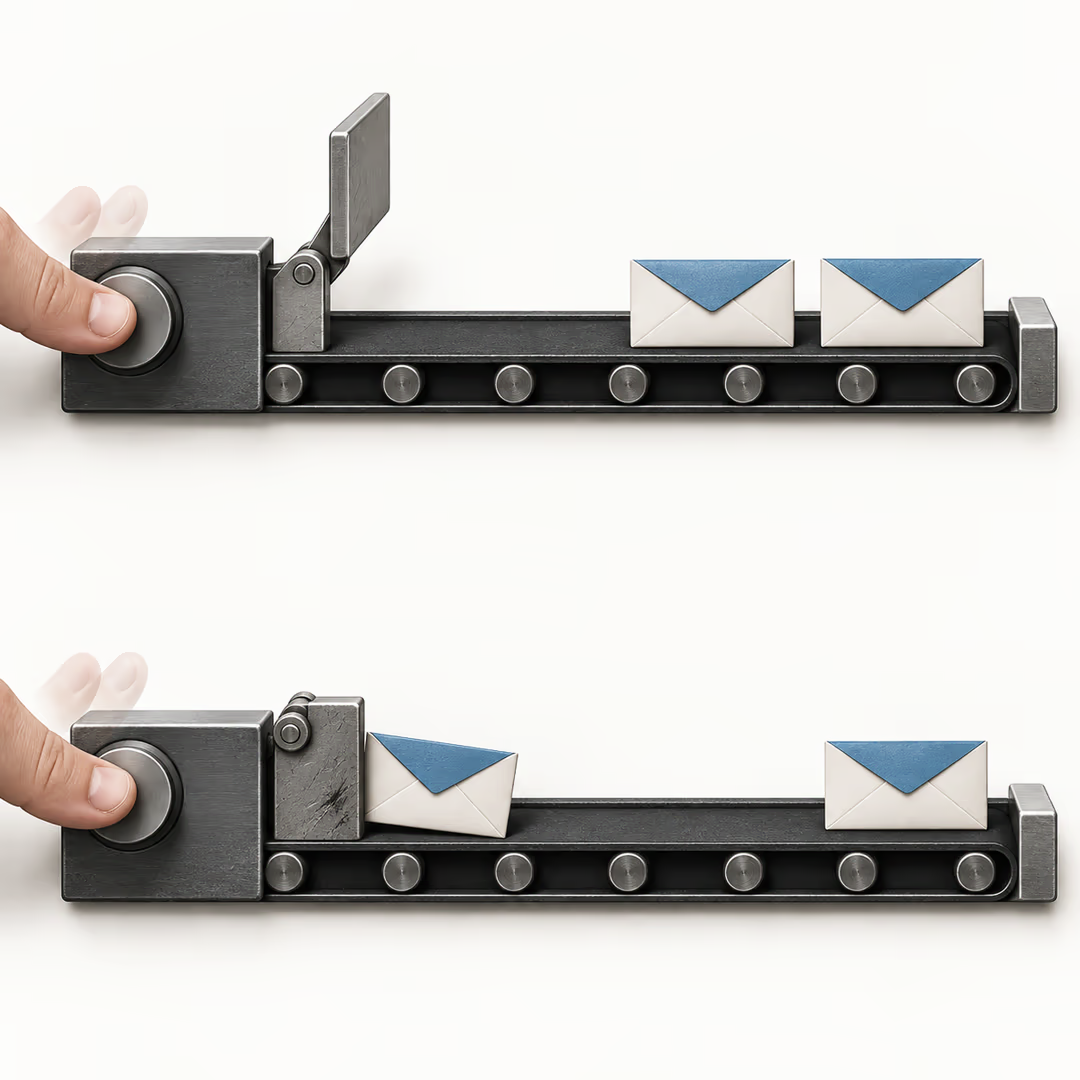
Because the guard was never written. Actions run in sequence inside one chain, but a second tap starts a second chain, and nothing stops it from running alongside the first.
This is why the flag in step 4 is set before the network call rather than after it. The window you are closing is the one between "the request left the device" and "a response came back", which on a slow connection is long enough for a frustrated user to tap three more times. Bind the submit control's enabled state to isSubmitting, and pick Rebuild Current Page when you set it, or the flag will be correct in memory while the button still looks tappable.
Clearing the flag in both branches matters as much as setting it. A FALSE branch that forgets it leaves the form permanently locked, which turns a recoverable network error into a dead screen.
Put the error on the control that caused it
A single generic snackbar is a worse version of information you already have. Form validation puts the message where it belongs by default: the Error Message property "will be displayed (below the TextField) if a user leaves the TextField empty", with separate messages for minimum characters, maximum characters and a failed Custom Regex. Pickers work differently and use "Add Action on Error", which fires "if the validation fails".
Server-side field errors are not covered by that machinery, because the validators run locally. The documented way to show them is a conditional Text widget under each input, bound to a page state value you set from the response body. More code than a snackbar, and the only version that tells someone which of six fields the server rejected.
Flutter's accessibility checklist is worth reading beside this one. It asks that "in fields that show errors, suggest a correction if possible", that "nothing should change the user's context automatically while typing in information", and that you test with TalkBack and VoiceOver rather than assuming. A red border at 2:1 contrast against a dark background is not an error message; the same checklist asks for at least 4.5:1.
Keeping the attachment through a retry
The Upload/Save Media action exposes its result through Widget State and the Uploaded File URL, or Uploaded File URLs as a List<String> for several files. Copy that URL into page state in the action immediately after the upload. Then a retry re-sends a reference to a file that is already in storage instead of uploading the same bytes twice.
Two settings on that action are worth setting before you ship: Max Width and Max Height, which "resize the image while maintaining its original aspect ratio", and the image quality value between 0 and 100. A 12-megapixel phone photo attached to a contact form is a slow upload that fails more often, which is how attachments get lost in the first place.
If the file genuinely has to survive a dead connection, the same documentation describes storing it locally and deferring the upload, with the bytes available through Uploaded Local File. That is a different article's worth of work, and the anatomy of a FlutterFlow custom widget is the right starting point if you end up handling those bytes yourself.
What the client cannot know
A timeout that arrives before the server read your request is indistinguishable, on the device, from a timeout that arrives after the server committed the write. Do not let the UI pretend otherwise. Say the outcome is unconfirmed, keep the values, and offer a retry.
What makes that retry safe is the server, not the form. Stripe's idempotent requests documentation describes the contract precisely: "a client generates an idempotency key, which is a unique key that the server uses to recognize subsequent retries of the same request", and for its v1 API, "retries with the same key return the saved response, including 500 errors". It suggests V4 UUIDs, caps keys at 255 characters, warns against putting personal data in them, and notes that keys may be pruned "after they're at least 24 hours old", so an idempotent retry is not a durable record.
Your submissionId is that key. Generate it once per attempt, send it with every retry, and ask whoever owns the endpoint whether a repeat is rejected, returned from cache, or quietly written twice. If the answer is the third one, the form cannot fix it.
Restoring values the page no longer has
Sometimes the requirement really is "keep this across screens", and page state cannot do it. The Set Form Field action "allows you to programmatically populate or update the value of any input widget" at runtime, one action per widget, with an option to focus the field after assigning it. Pair it with values lifted into app state, or with a field's Initial Value set from a variable, and a reopened page can be rebuilt from something that outlived it.
Reach for this deliberately. A form that restores a half-finished draft on every visit is helpful for a long application and irritating for a two-field contact box.
Run these six checks on a real device
- Submit with a required field empty. The field shows its own error, every other value stays.
- Submit in airplane mode. Values stay, an error appears, the button becomes usable again.
- Make the endpoint sleep past the timeout, then return success. Values stay, the message says the outcome is unconfirmed, and the retry carries the same submission id.
- Tap Submit four times quickly. Check the server log: one request.
- Navigate away mid-submission and come back. Confirm the result matches what you promised the user, rather than what you assumed.
- Retry after a failure. The attachment reference is still there.
Check two and four in a release build on a slow network, not in Preview. Preview shows the rendered state; it does not prove native upload or timeout behaviour.
Then open your own submit chain and look at where the reset node sits. Inside the success branch, or at the end of the list? That one answer tells you whether your users are losing their work today.